A welcome animation is the first thing a guest sees when they open your site: an envelope with a wax seal, a monogram, a pair of velvet curtains and so on, laid over your page. It waits with Tap to reveal until the guest taps, then opens onto the site. A Skip link in the corner (or the Escape key) goes straight to the page. It is off until you choose one.
Choosing a style
Open the Welcome workspace.
Press Welcome in the rail, next to Design. The inspector lists the styles as tiles, each with a short line about it, starting with Off (Straight to the site). Click one to choose it; it saves as you click.
If your theme has a style that suits it, a line above the tiles reads Suggested for the theme, with a Use it link, and that tile is tagged Suggested. It is only a suggestion; every style works with every theme. Themes are covered in Choose a theme.
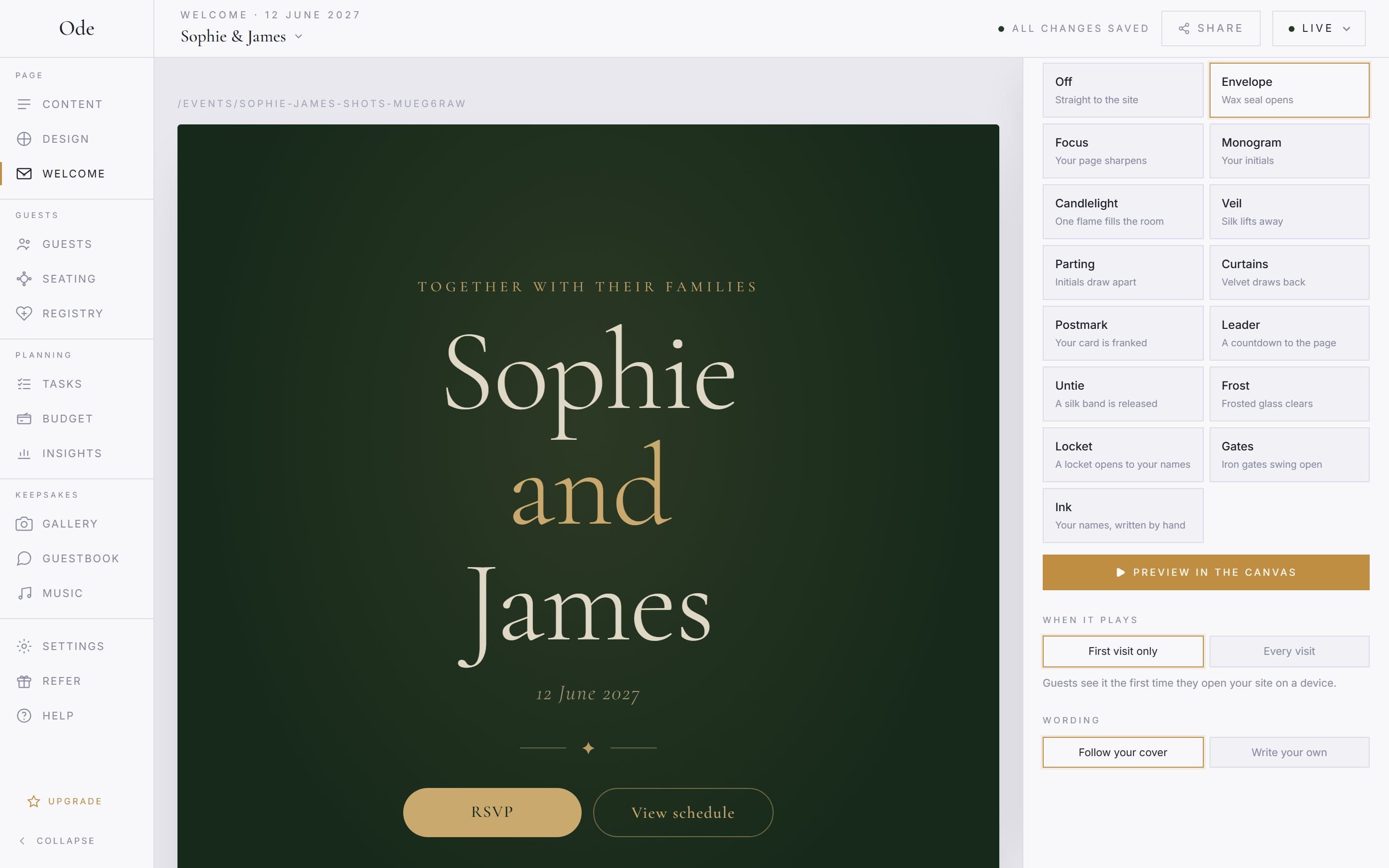
Preview it.
Once a style is chosen, Preview in the canvas appears under the tiles. Press it and the animation plays over the canvas, starting by itself after a moment so you see the whole thing. You can tap it or press Skip as a guest would. Press it again to replay from the start. A preview never counts as having seen it on your live site.
How often guests see it
Under When it plays there are two choices.
- First visit only (the default). A guest sees the animation the first time they open your site on a device. When they tap it, skip it or press Escape, the site sets a small cookie in their browser,
ode_welcome_followed by your event’s id, and from then on that browser goes straight to your page for a year. A different phone or browser, a private window, or a browser whose cookies have been cleared counts as a first visit and plays it again. - Every visit. The animation plays every time anyone opens your site, and no cookie is set at all.
The cookie holds no personal data and is listed with the others in the cookies section of our privacy policy. The same rule applies to you: signed in, you see the animation on your own live site the first time you open it on each device, just as a guest would.
Custom wording
By default the animation uses the words on your cover: the opening line, your names and the date. Change the cover and the animation follows, so the two never disagree.
Some styles show words of their own: Envelope, Monogram, Parting, Postmark, Leader, Locket and Ink. For those, a Wording section offers Follow your cover or Write your own. Writing your own gives you a Tagline, up to three name lines, a Date and the two letters for the Wax seal, Monogram or Initials. These change the animation only; your cover stays as it is.
What you write is used exactly as written. A field left blank is left off the card, a wax seal with no letters is pressed plain, and a monogram with no letters is the ring on its own. Parting is the exception: its letters are the animation, so it always shows some. The other styles, such as Focus, Veil and Curtains, reveal your page itself and have no wording to change.
On every plan
Every style is available on every plan, Free included.
When it does not play
Reduced motion. If a guest’s phone or computer is set to reduce motion (an accessibility setting on iOS, Android, Windows and macOS), the animation respects it. They still see the opening screen, and a tap fades it away to your page instead of playing the animation. The same setting keeps a theme’s sections still as they scroll.
A draft event. Guests cannot open a site that is still in Draft: they see Not live yet instead, so there is nothing to welcome them to. It plays for guests once you publish. You, signed in, can open your draft site and see it there.
Already seen. On First visit only, a browser that has opened it once goes straight to the page. To watch it again, use Preview in the canvas, open the site in a private window, or switch to Every visit.