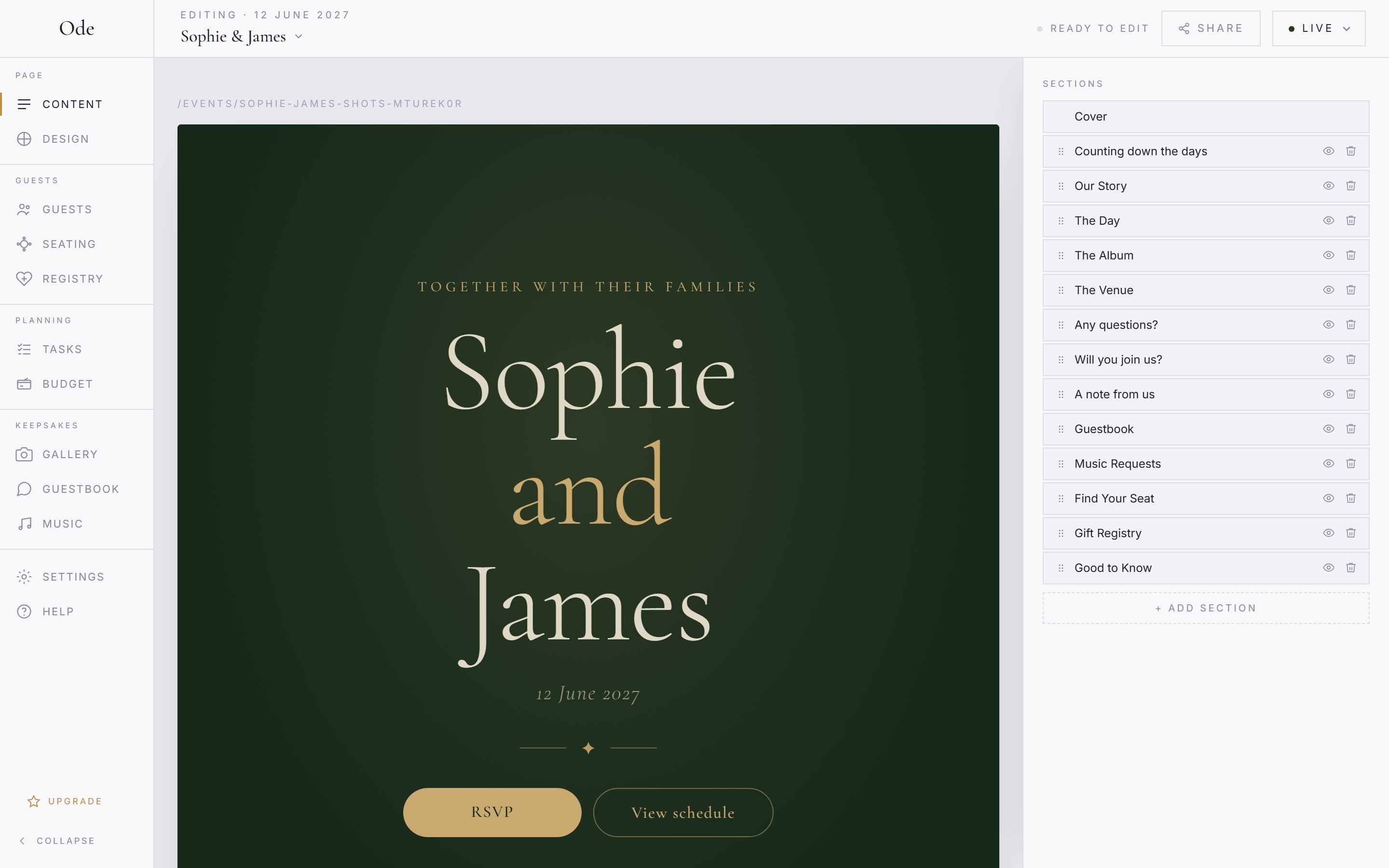
The studio is split into workspaces, listed in the rail down the left side on desktop: Content, Design, Guests, Seating, Gallery, Guestbook, Music, Registry, then Settings and Help. Most of your time goes into the first two, which is what this guide covers.
The Content workspace
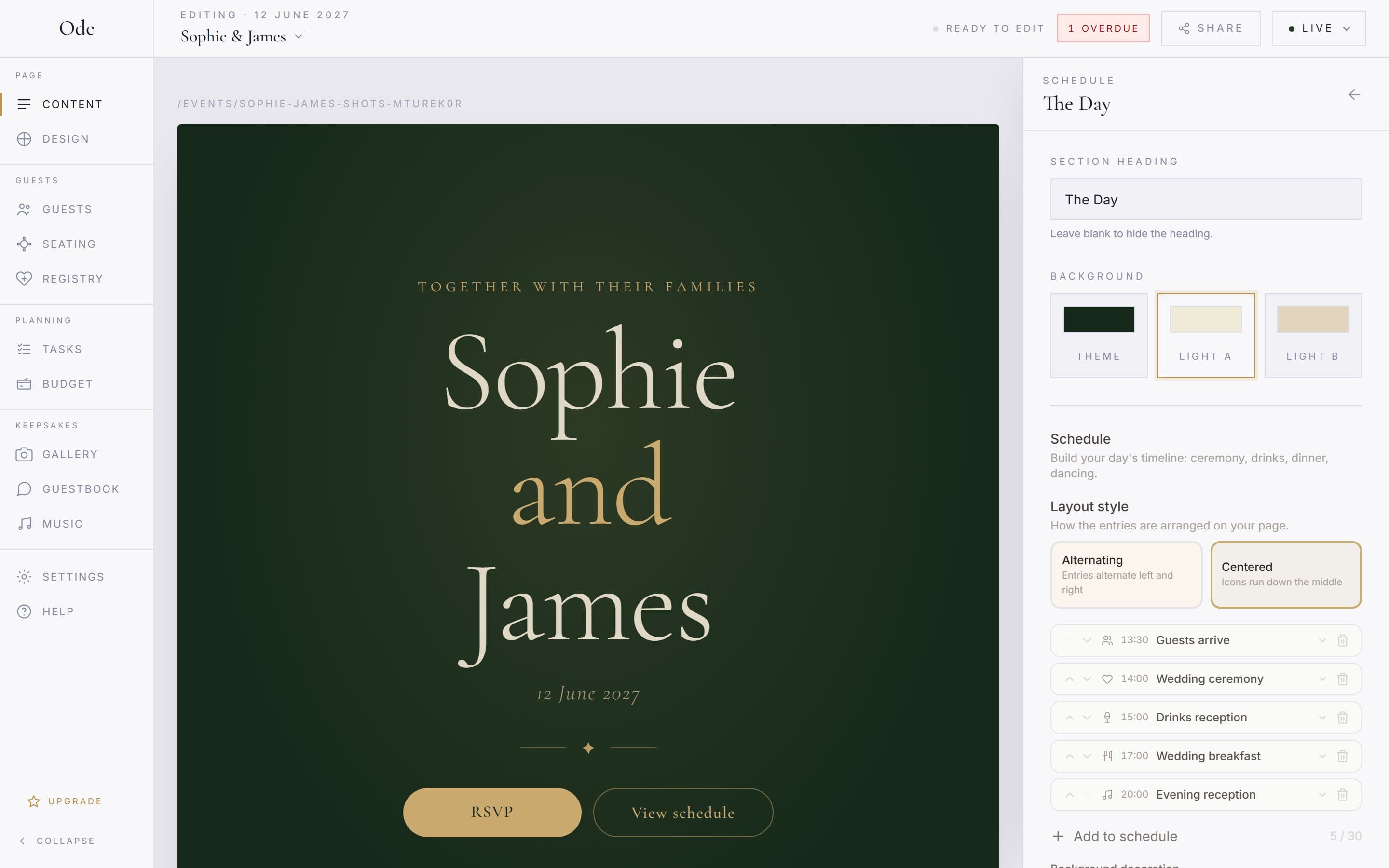
The canvas in the middle is a live preview of your page, exactly as guests will see it. Click any section to select it and an inspector opens on the right with that section’s settings: headings, text, images and so on. Changes appear in the preview as you type. Click the hero at the top to edit the cover: your names, the opening line, the background style and the buttons.
Add a section.
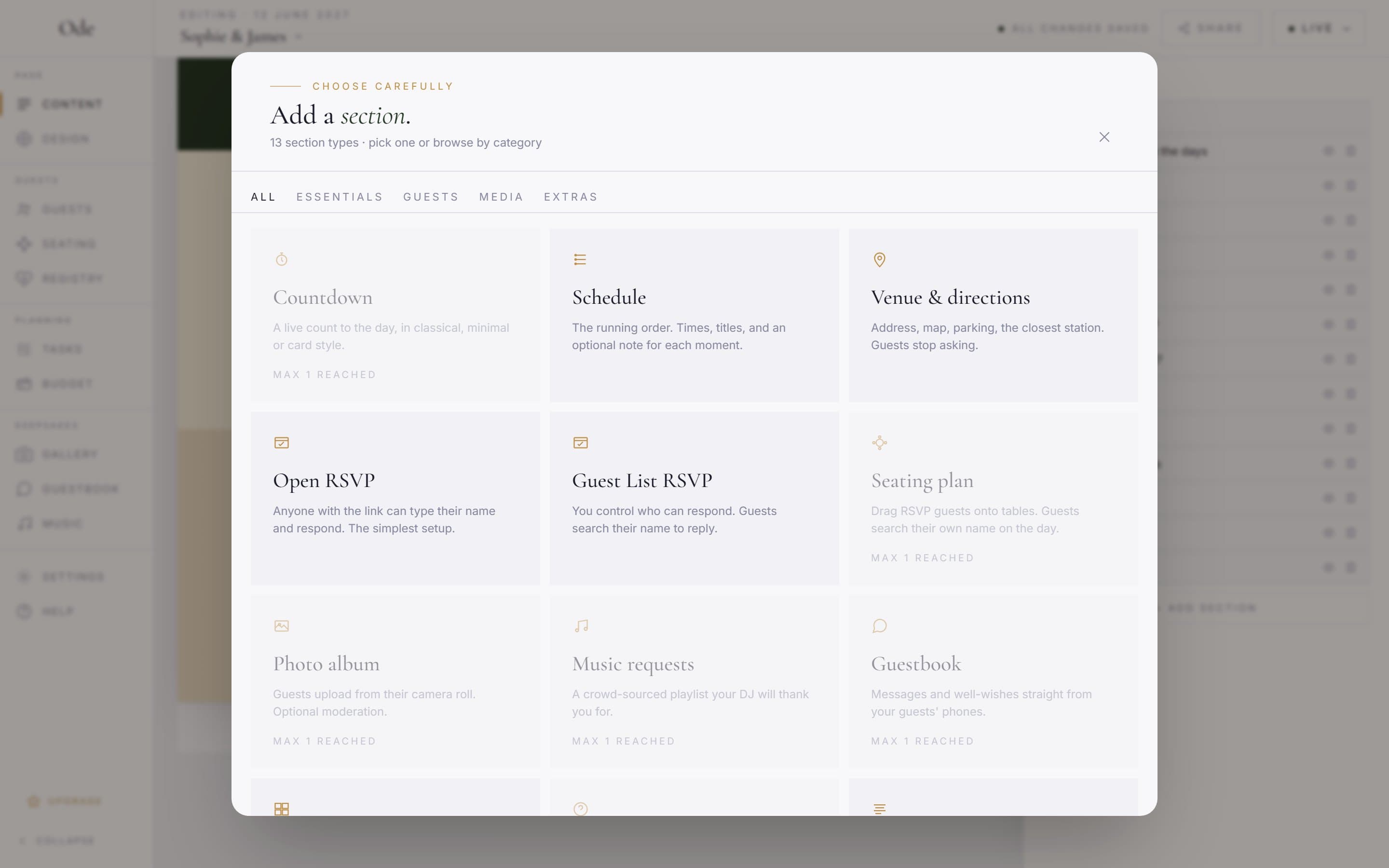
Press + Add section at the bottom of the canvas. On an empty page the canvas reads Your page starts here. and the button is Add your first section. Either opens the section library, titled Add a section. Use the category tabs to browse: All, Essentials, Guests, Media and Extras. Pick a tile and the section drops into your page straight away, already selected so you can start typing.
Tiles your plan doesn’t include carry a Plus badge and open the upgrade modal instead of adding anything. Greyed tiles have reached their limit on the page and read, for example, Max 1 reached: one countdown, one gallery, one guestbook, one FAQ section, up to three text sections and so on. You can have two open RSVP sections and two guest-list ones.
Arrange and style it.
On desktop, the selected section shows a small toolbar above it. The Move up and Move down arrows reorder it on the page, the three swatches switch the section’s background between the palette’s main and two secondary colours, the eye icon (Hide from guests) hides it without deleting anything, and Delete opens a confirmation. A hidden section stays on your canvas with a Hidden from guests label; press the eye again (Show to guests) to reveal it.
The delete confirmation asks Remove “Section name”? with Keep it and Remove section. Removing a section removes its content too; for an RSVP section it also permanently deletes every reply and guest-list entry it holds, and the modal shows the counts before you confirm.
Configure the interactive sections in their own workspace.
RSVP, Gallery, Seating plan, Guestbook, Music requests and Gift registry sections keep their content settings elsewhere. Selecting one gives you a shortcut at the top of the inspector, such as Go to Guests for RSVP, Go to Gallery, Go to Seating, View messages, View requests or Manage items. The section on the page controls how it looks; the workspace controls how it behaves and holds what guests send. See Set up RSVPs and meal choices and Set up the photo album for the two big ones.
The Design workspace
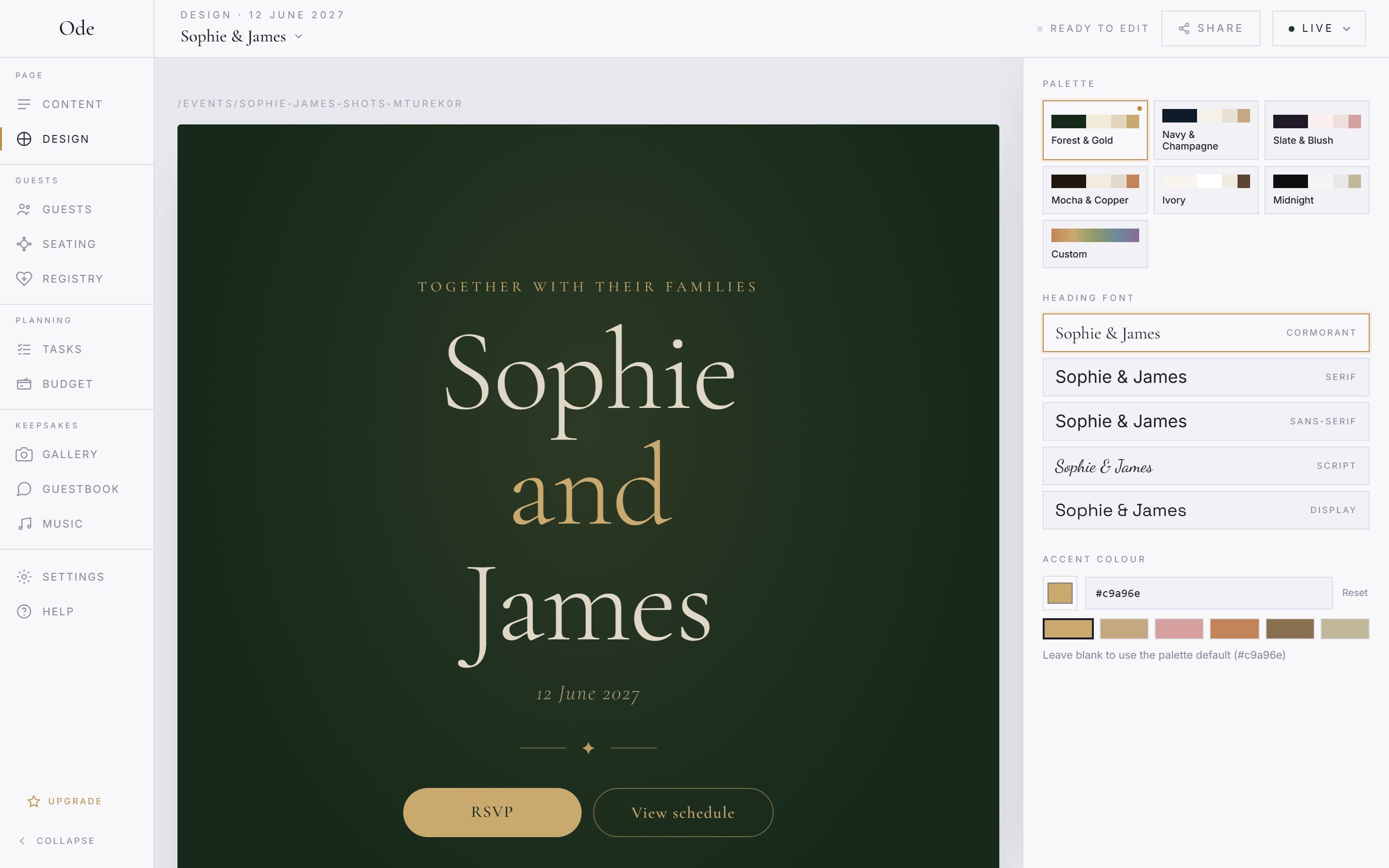
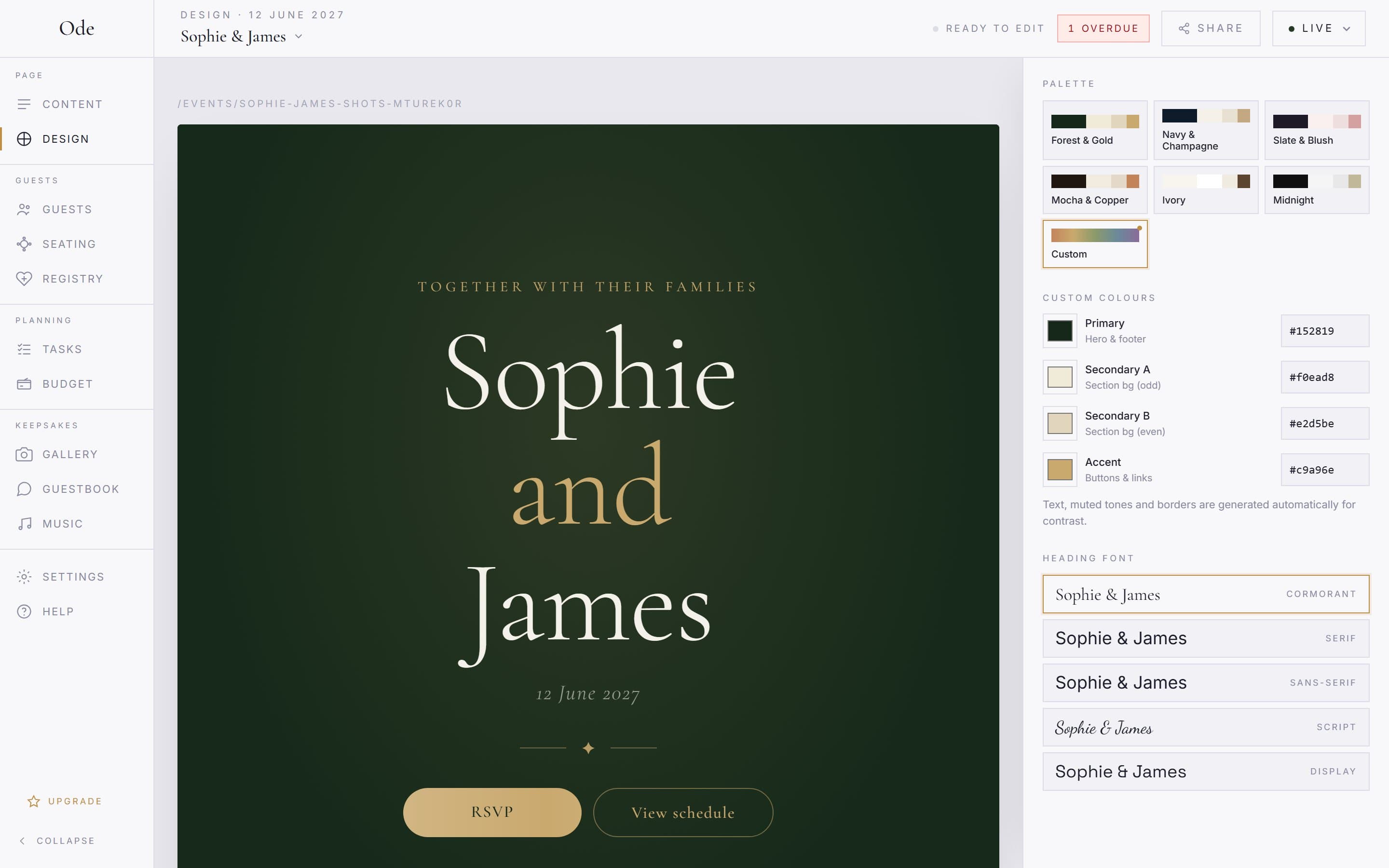
Select Design in the rail and the inspector switches to the page-wide controls. Palette tiles switch your colour scheme. Font tiles change the type style. Below them, Accent colour takes any hex value, with presets to choose from and a Reset link if you wander too far. Everything previews live on the canvas, so you can flick between palettes and watch the page change.
The last palette tile is Custom. On the free plan it carries a lock and opens the upgrade modal; on Starter and above it reveals a Custom colours panel with four fields: Primary (hero and footer), Secondary A and Secondary B (the alternating section backgrounds) and Accent (buttons and links).
There is no save button. The studio saves automatically, and on desktop the masthead shows Saving… then All changes saved so you know where you stand. If it reads Couldn’t save, check your connection and make the change again. If the event is already live, every saved change is visible to guests immediately; there is no separate publish step for content.
On a phone or tablet
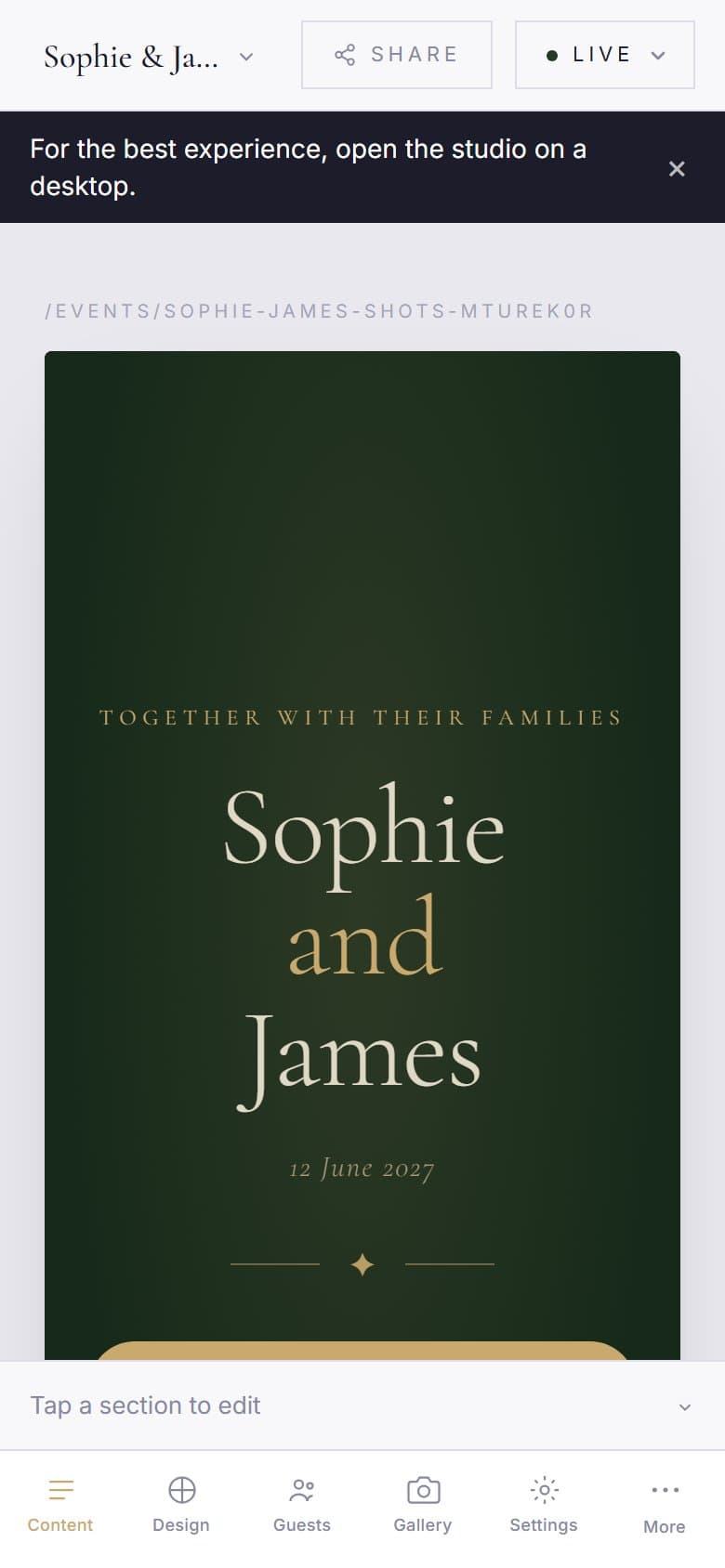
On smaller screens the rail becomes a bottom tab bar with Content, Design, Guests, Gallery and Settings, plus a More sheet for Seating, Guestbook, Music and Registry. Locked workspaces are marked Plus only there. A banner notes For the best experience, open the studio on a desktop.
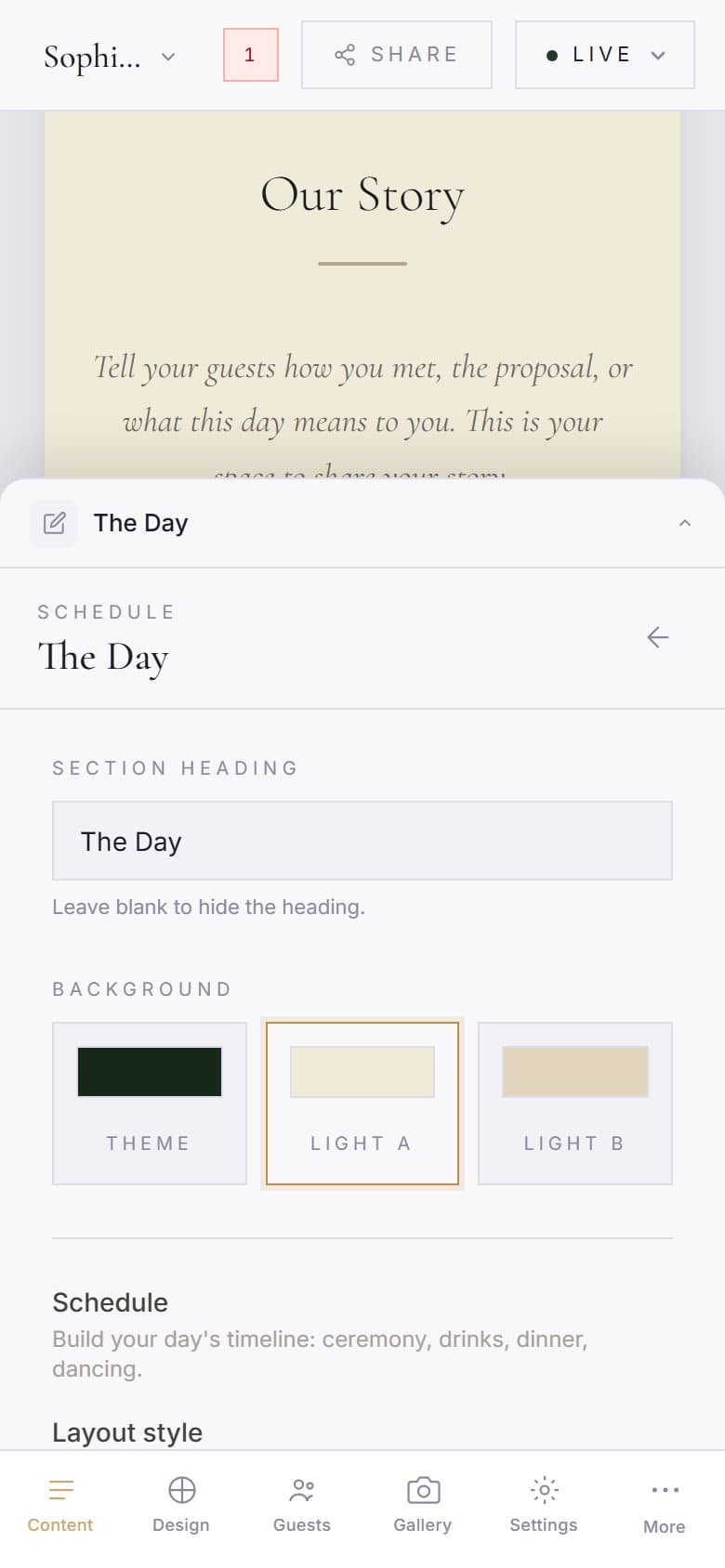
There is no hover toolbar on mobile. Tap a section on the canvas and the inspector rises from the bottom as a sheet (Tap a section to edit when nothing is selected); its action row has Up, Down, Hide and Delete, which do the same as the desktop toolbar. Quick edits work fine on mobile, but building the page from scratch is easier with a bigger screen.