Creating an event takes a few minutes. The new-event wizard walks you through four steps: The occasion, Who & when, A feel and Ready. On a desktop a sidebar on the left shows the steps and where you are; on a phone the steps run one after another with a Step 2 of 4 line at the top. Nothing you choose here is final except the web address: names, date, colours and fonts can all be changed later in the studio.
The four steps
The occasion.
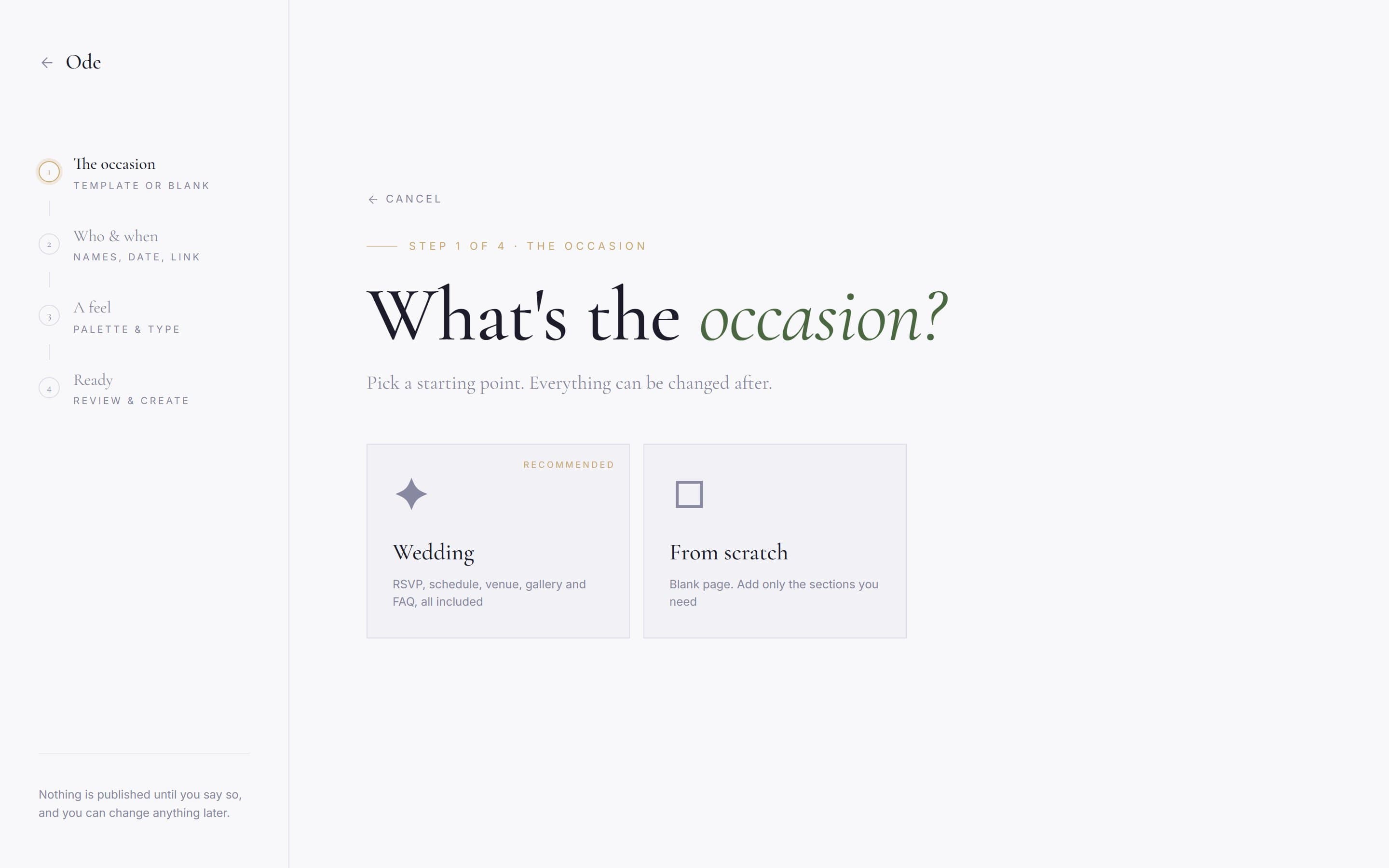
Pick a starting point. The Wedding template, badged Recommended, gives you a page pre-filled with a cover, an RSVP, a schedule, a venue section, a countdown, a text section, a photo gallery and FAQs. From scratch starts you with an empty page if you’d rather build it up yourself. Either way you can add or remove sections later.
The essentials.
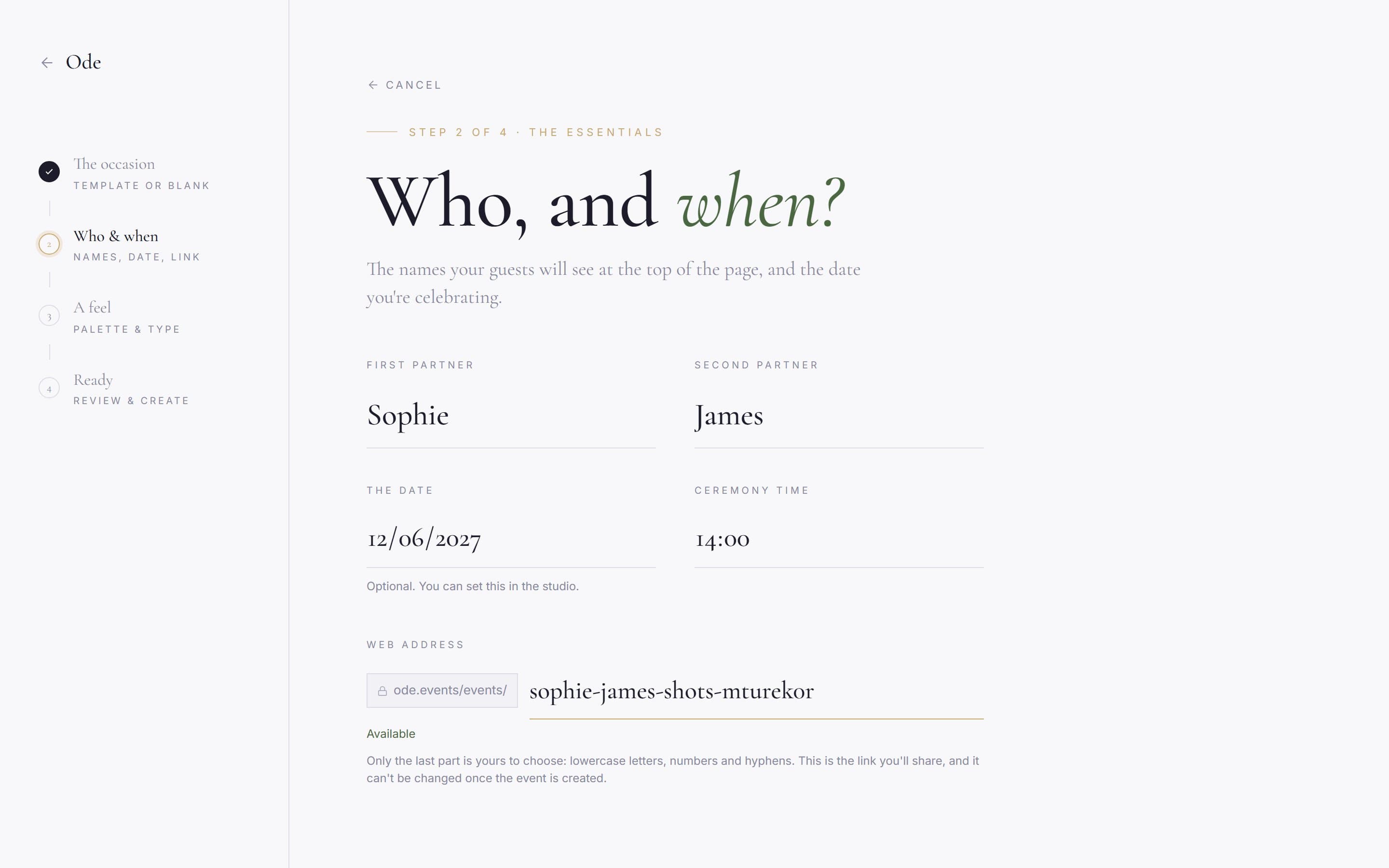
For weddings you’ll see First partner and Second partner fields; these become the names on your page. Below them are The date and Ceremony time. Both are optional at this stage, but you will be asked for the date before you can publish, so if you know it, enter it now. For a from-scratch event the fields are Event name, Date and Time instead.
This step also sets your Web address, the link guests will open. We suggest one from the names, and you can type your own using lowercase letters, numbers and hyphens. The page tells you straight away whether it’s available, and Continue → stays disabled until it is. Choose carefully: the address is permanent. There is no way to change it once the event is created, so if you need a different one, create a new event.
A feel.
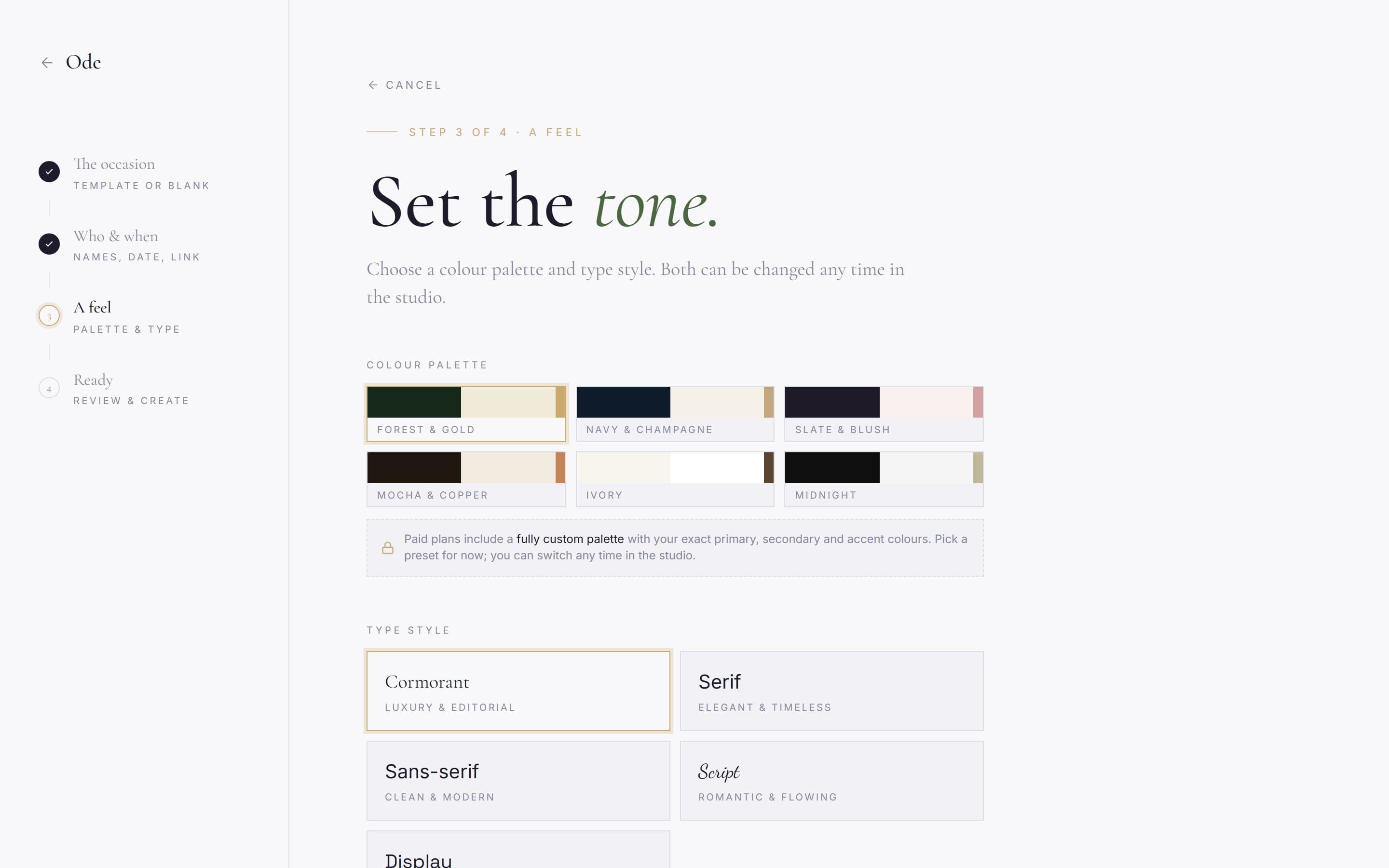
Choose a Colour palette from the grid, then a Type style from the grid below it. These set the look of your page, and both can be changed at any time in the studio’s Design workspace, so pick whatever feels closest and move on. The palettes are designed to work as a set, with an accent colour you can fine-tune later if none of them is quite right.
Ready.
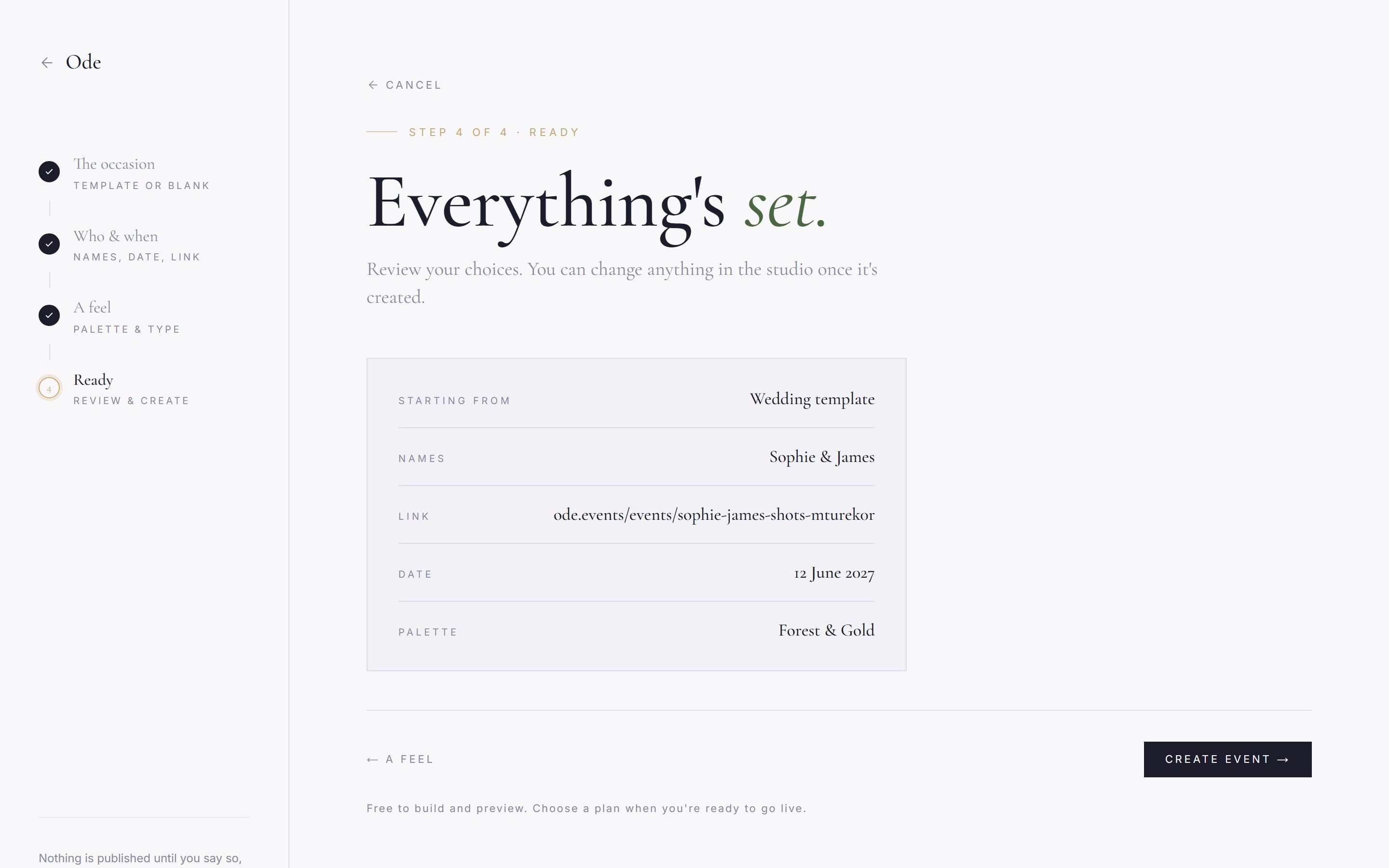
The final step shows a summary of your choices. Press Create event → and your event is made. The footer here reads Free to build and preview. Choose a plan when you’re ready to go live. That is exactly how it works. You don’t pay anything, or even pick a plan, until you decide to publish.
What happens next
After creating the event you land in the studio: a live preview of your page in the middle, with workspaces down the left side (or in a bottom tab bar on a phone) for content, design, guests and the rest. The masthead at the top shows Publish →, which stays there until you go live. A from-scratch event shows an empty canvas reading Your page starts here. with an Add your first section button. The Build and design your page guide covers it in detail.
Can I change my answers later?
Everything except the web address. The names live on the cover: in the Content workspace, click the hero at the top of the canvas and edit Your names in the inspector. The date, time and timezone are in Settings under Event details. The palette and fonts are in the Design workspace, and sections can be added or removed at any point. If you chose the wrong template, the simplest fix is to create a fresh event and delete the old one from Settings > Delete event.