A theme decides how your whole site is laid out and how it moves. Every event starts on Classic, the centred layout you can recolour and restyle yourself. The other themes are finished designs, each with its own layout, typefaces and colourways, and you can switch between them as often as you like without losing anything you have written.
Where the themes are
Open the Design workspace.
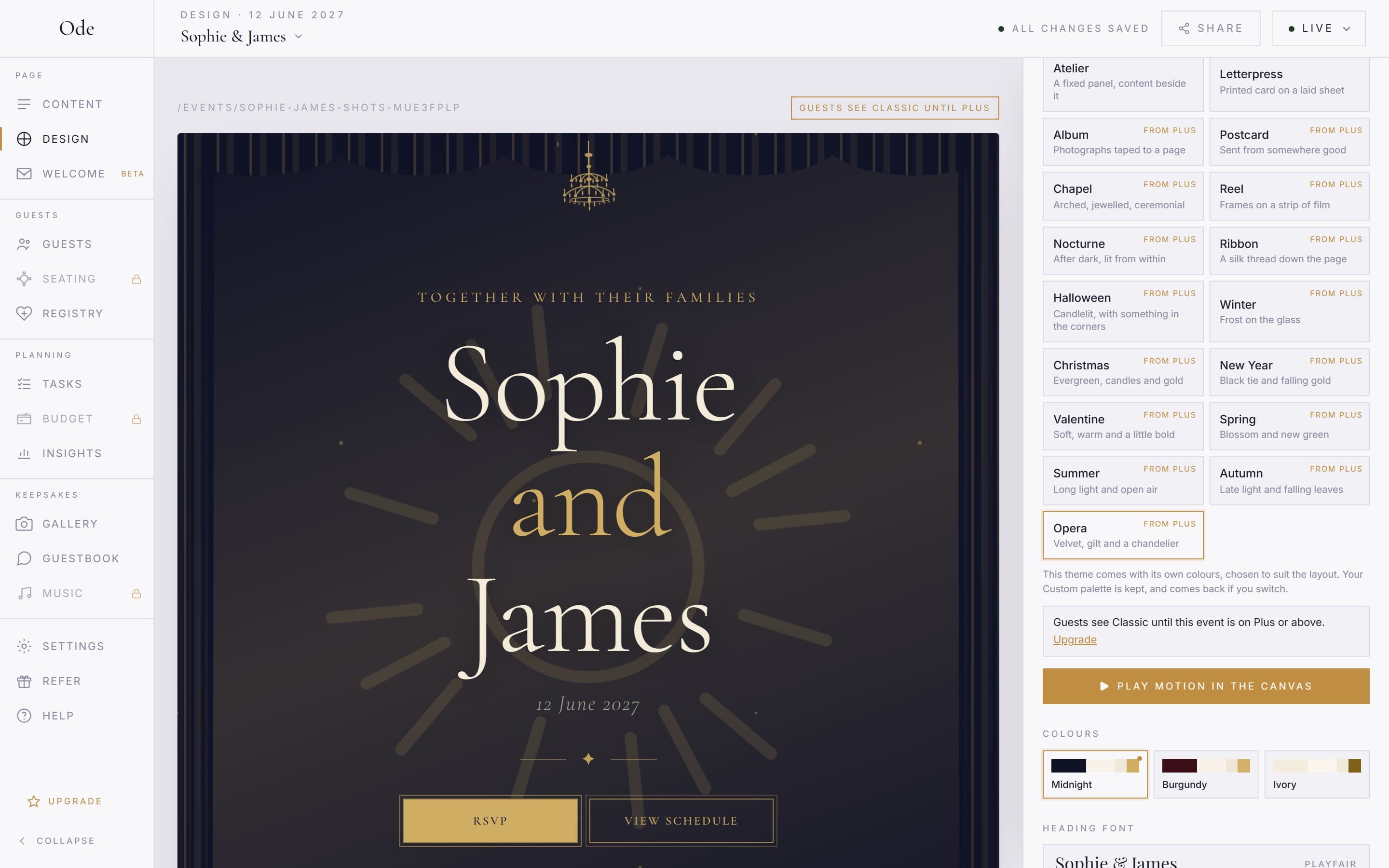
Press Design in the rail (or the tab bar on a phone). The inspector opens on Theme: a grid of tiles, each with the theme’s name and a line about it. Click a tile and the canvas redraws your page in that theme straight away. The choice saves as you click; there is no apply button.
Play the motion.
The canvas stays still while you edit, so you can click on things without them moving under you. On the live site, a theme brings each section in gently as a guest scrolls. To see that in the studio, press Play motion in the canvas under the grid: the canvas goes back to the top and scrolls itself so you can watch the page arrive the way guests will. Scroll yourself at any point to take over. Classic has no motion, so the button is not shown for it.
What a theme sets
A theme is a whole design, so it takes over the decisions that make it hang together:
- Layout. How the cover and each section are arranged, the ornament around them and the motion as guests scroll.
- Type. Each theme pairs a heading face with a body face. The Heading font list shows only the faces that suit it, and Body font is hidden because the theme chooses it.
- Colours. In place of the palette grid you get a Colours row of colourways designed for that theme. The Custom palette and the accent colour are not offered, because an open colour picker would undo the design.
- Section styles. The countdown, schedule and guestbook take the theme’s own style, so their style pickers disappear from those sections’ inspectors, and the cover’s Background style picker goes too.
A few themes go further. Some are built around a printed card and leave out the cover photo, the second portrait or the cover buttons. Guests are not stranded: your RSVP, gallery and registry sections are still on the page.
What stays yours
Everything you wrote and uploaded. Your sections, their order, the words in them, your names and date on the cover, your photos, replies, messages and the album are the same in every theme; only the way they are shown changes. If a theme leaves out your cover photo or portrait, the photo is still saved and comes back when you switch to a theme that uses it.
The “From” tag, and what guests see
Some themes are free and the rest come with a paid plan. A tile your current plan does not cover carries a small tag such as From Starter or From Plus. The tag is not a lock: you can still choose that theme, build with it and preview it in the studio.
Until the event is on that plan, though, guests see your page in Classic. The inspector says so under the grid (Guests see Classic until this event is on Complete or above., with an Upgrade link), and the bar above the canvas carries the same reminder. Nothing is lost while you wait. The theme stays saved on your event, and the moment you upgrade, guests see it with no further step. Which plan includes which theme is on the pricing page, and you can try every theme on our example wedding from the themes page.
Going back to Classic
Choosing a theme only changes the theme. Your own Classic palette, custom colours, accent and body font are left exactly as they were, so switching back to Classic brings back the look you had, a Custom palette included. The options for Classic are covered under “If you stay on Classic” in Build and design your page.