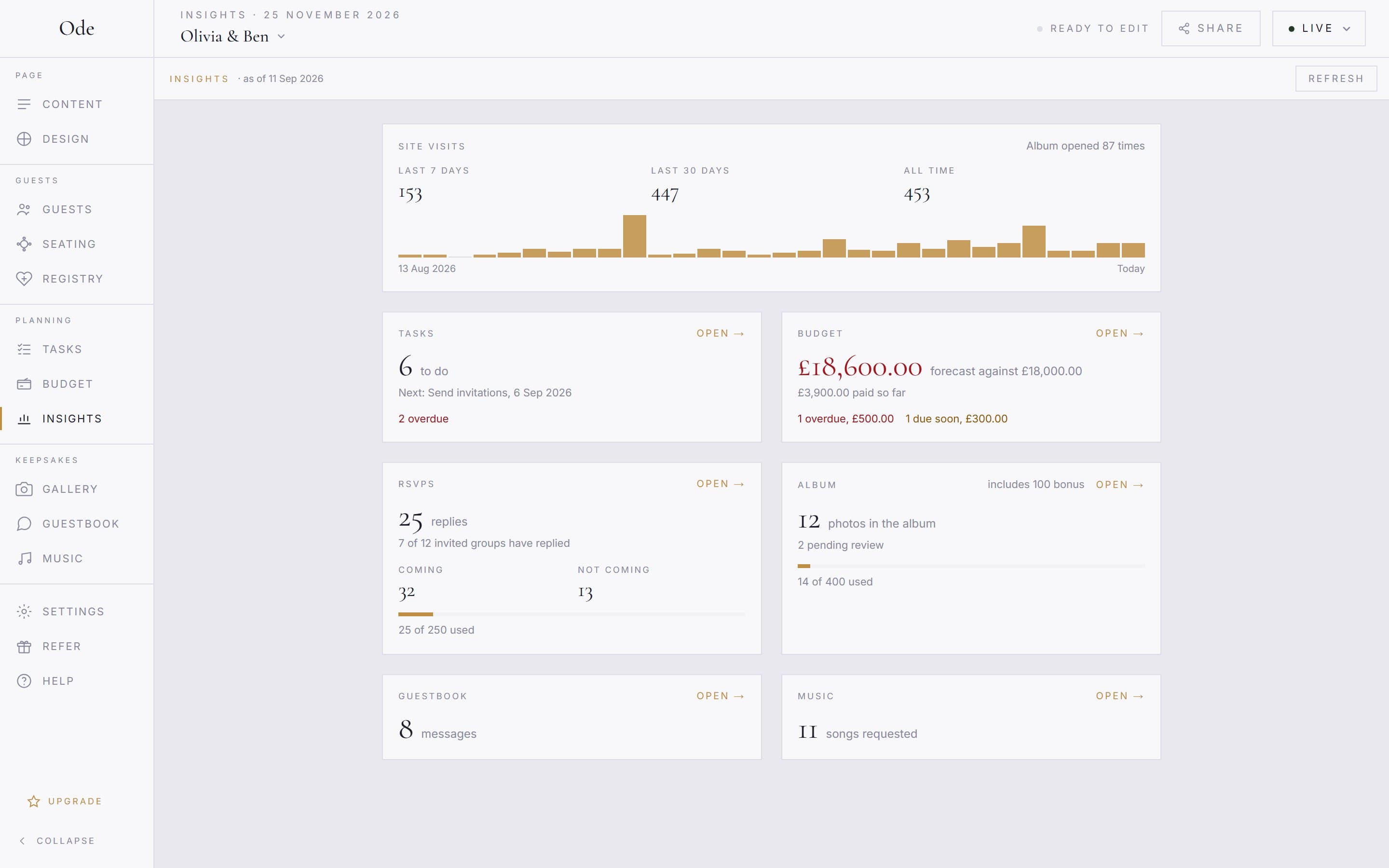
Insights is one page with the numbers for your wedding: how many people have visited the site, how the replies are going, what is in the album, and how much of your plan you have used. It is private to you and your co-organisers, and every plan has it, including Free.
Site visits
The bars are the last 30 days of visits to your page, with the totals for the last week, the last month and all time above them. A visit is counted when someone opens your page, without cookies and without storing anything about who they are. Your own visits are not counted, and neither are the previews that messaging apps fetch when you share the link.
Replies, photos and your limits
RSVPs shows how many replies you have, how many people are coming and not coming, and, for a guest-list RSVP, how many of the invited groups have answered. Album shows the photos guests can see and any waiting for your approval. Both carry a bar for your plan’s limit. It turns amber at 80 per cent and offers the plans when you reach it, so you are never caught out on the day.
Guestbook and Music are simple counts. On a plan without them, the card says which plan has the feature instead.
Tasks and budget
Tasks shows what is still to do, the next dated task and anything overdue. Budget, on Plus and above, shows your forecast against your target, what you have paid so far, and any payments overdue or due in the next 30 days. They are the same numbers as the Tasks and Budget workspaces, in one place.
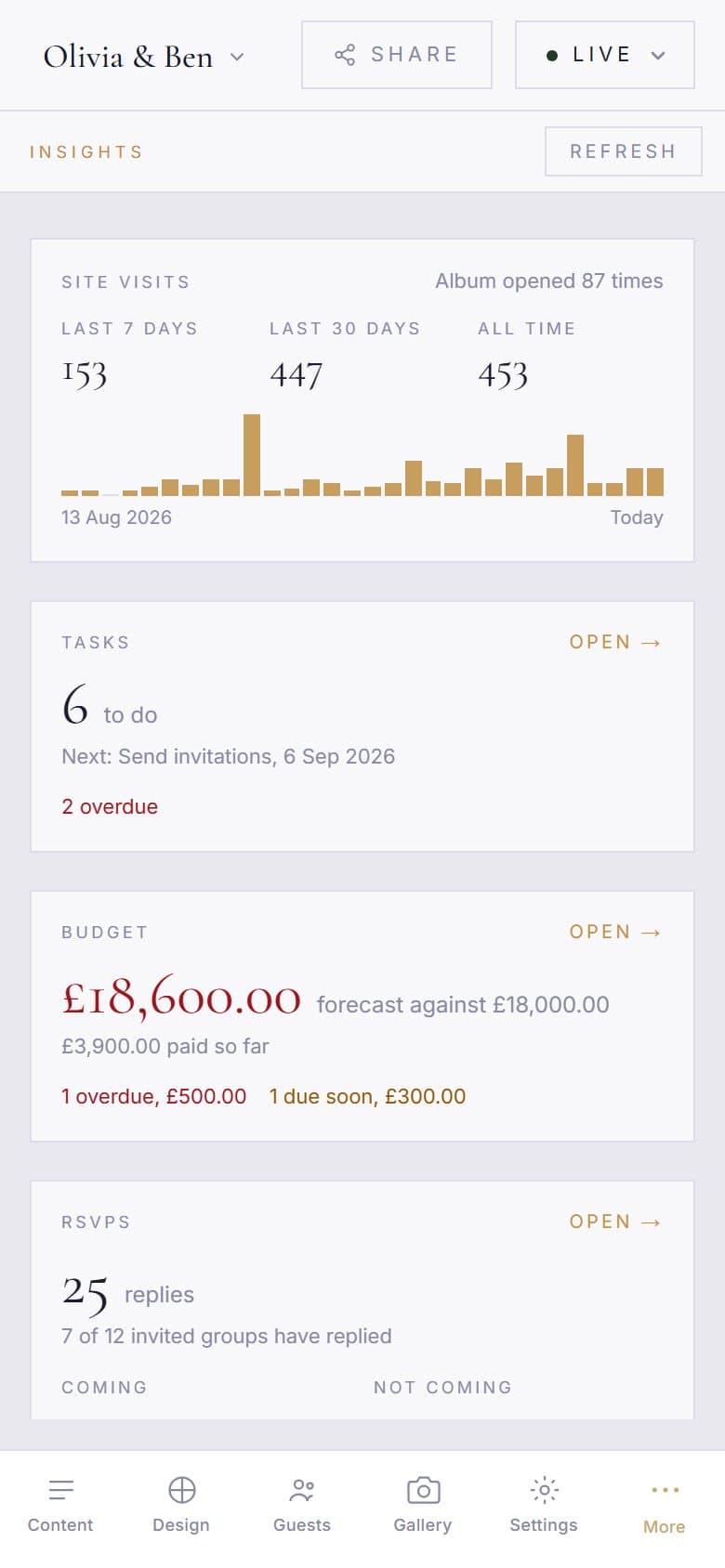
Press the title of any card, or Open, to go to that workspace. The numbers update when you come back; Refresh fetches them again without leaving the page.