The Settings workspace is where the practical decisions live: who can see your page, what your plan includes, and what happens to everything afterwards. It’s a single page of sections, which this guide walks through in order: Event details, Access & permissions, Plan & billing, Co-organisers, Delete event and Account.
Event details
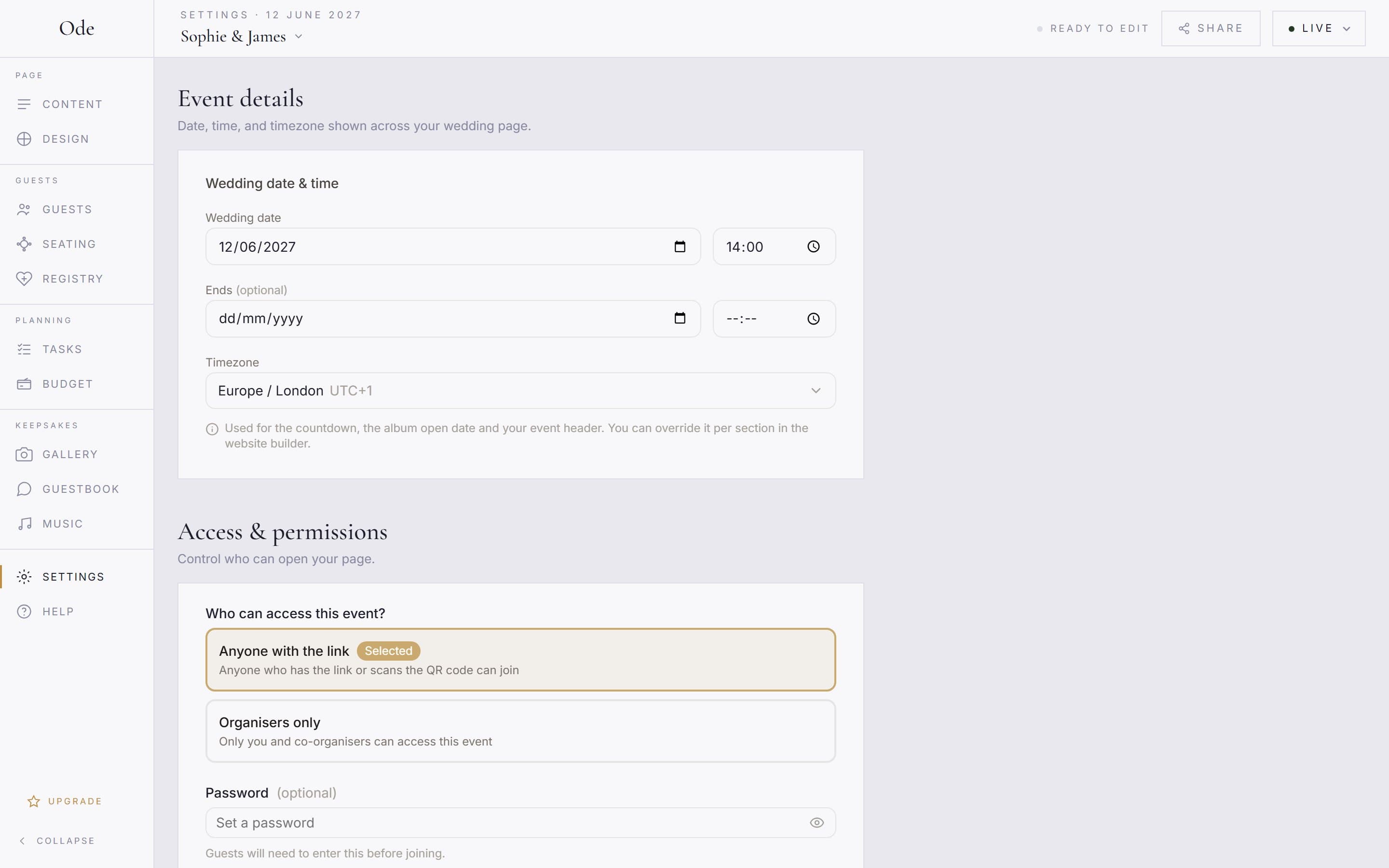
Your Wedding date & time, an optional end date and time, and the Timezone. The help text underneath explains why they matter: Used for the countdown, the album open date and your event header. The timezone also decides when an RSVP deadline closes (the end of that day, local to the event). If the countdown on your page looks off, or the photo album opens at a strange moment, this is the first place to check.
The photo album opens on the wedding day and follows this date if you move it, until you choose a different album date in Gallery > Settings or the first photo is uploaded. If the two days differ, a notice under the wedding date says Your photo album opens on…, not on your wedding day. with a Change it in Gallery settings button. Moving the date after replies have arrived also shows a warning, because replies are deleted 90 days after the original event date.
Access & permissions
Who can access this event? offers two answers. Anyone with the link is the normal choice: the page is live and anyone you share the link with can open it. Organisers only takes the page out of guests’ reach while keeping it intact for you and your co-organisers; guests see an Organisers only notice. Useful while you’re mid-rebuild.
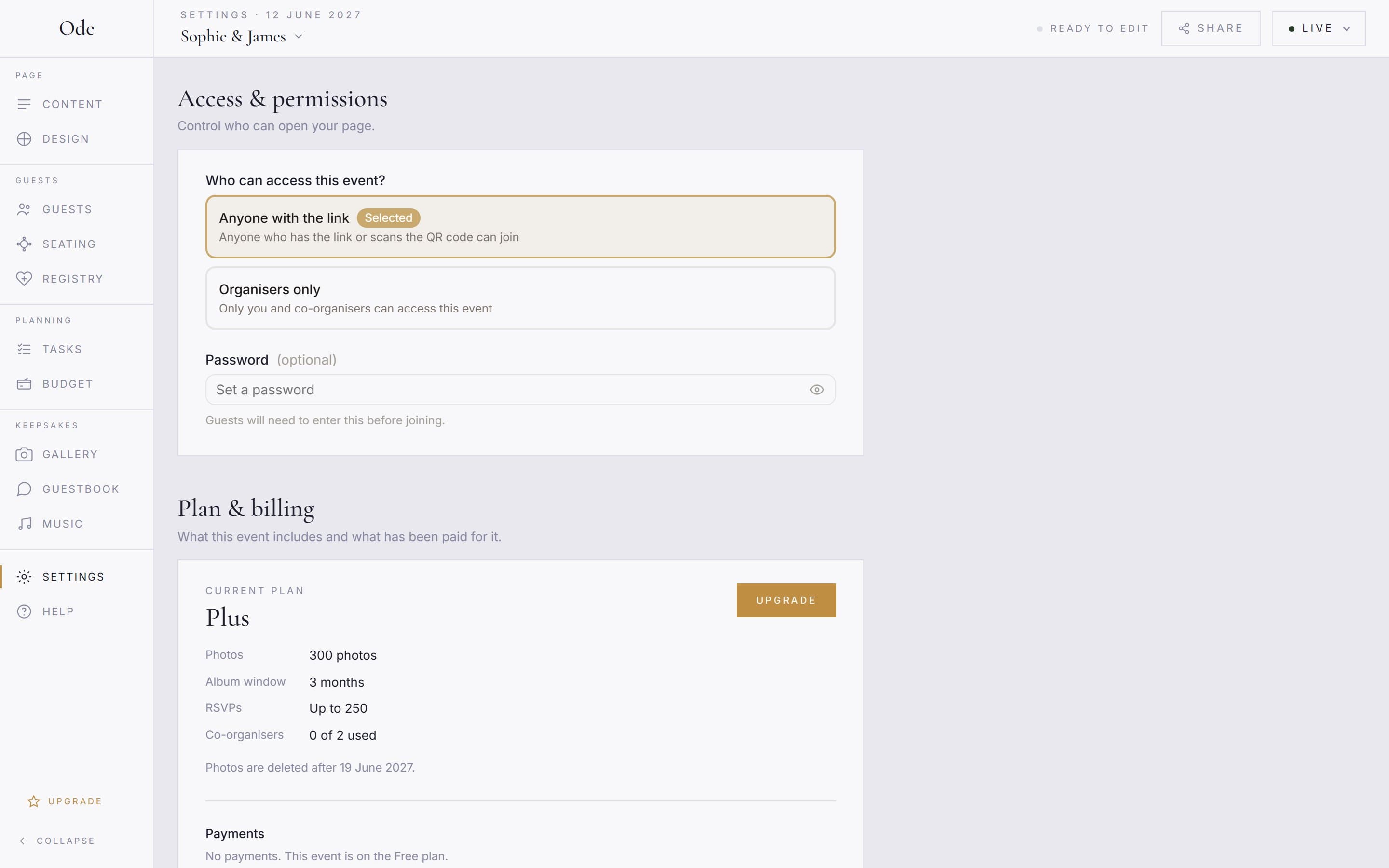
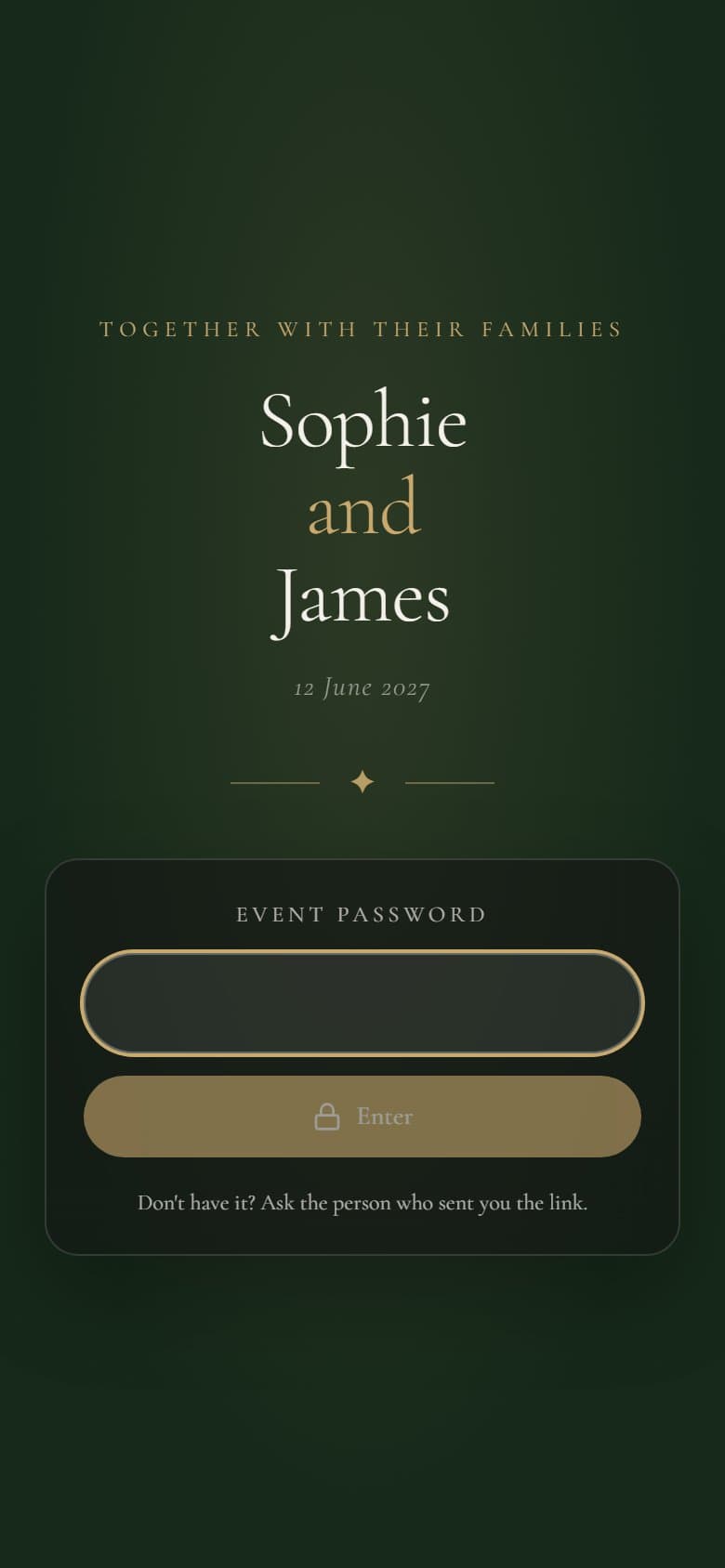
Password (optional) adds a password on top of the link, so a forwarded link alone isn’t enough to get in. Type it into Set a password and press Set password. From then on the panel reads Password protected. This is how it works for guests:
- Opening any page of the event sends them to a join screen at /events/your-address/join, where they type the password and press Enter. Wrong guesses are deliberately slowed down, so the password cannot be brute-forced quickly.
- A correct password sets a cookie in that browser, so they aren’t asked again. The cookie covers the whole event, including the photo album and upload pages.
- The password is stored hashed, so it cannot be viewed later, by you or by us. The panel says The current password cannot be recovered. Enter a new one above to change it. If you forget it, set a new one.
To change it, type into Enter new password to change and confirm with Yes, change password; the panel warns that Everyone will need to enter the new password, including guests who already have the page open. Every guest is logged out at once, which makes changing the password the way to shut out someone you no longer want on the page. To remove it, press Remove and confirm with Yes, remove password; the warning reads Anyone with the link will be able to join without a password.
Whether guests can upload photos and whether uploads wait for your approval are not here: the Guest uploads and Require moderation switches live in the Gallery workspace under Settings. They are covered in Set up the photo album.
Plan & billing
Before you publish this reads No plan yet. Afterwards it shows your Current plan with the limits frozen on this event: Photos, Album window, RSVPs and Co-organisers (for example 1 of 2 used), plus the date photos are deleted. An Upgrade button opens the plan modal; upgrades from a paid plan cost the difference. Under Payments every payment for this event is listed with its date and amount, or No payments. This event is on the Free plan. Co-organisers see the same information but Only the event owner can change the plan.
Co-organisers
Invite someone to share the studio: they can edit the page, manage RSVPs and moderate photos, while publishing, the plan and deleting the event stay with you. The full detail, including the invitee’s flow and plan limits, is in Invite a co-organiser.
Delete event and Account
When the wedding is over you don’t need to delete anything: switch the status pill at the top of the studio to Ended and the page and album stay up for guests while RSVPs, uploads, messages, song requests and gift claims close. Photos are deleted when the album window closes, replies 90 days after the event date, and the event itself a year after the event date; we email you before the photos go.
Delete event is for when you want it gone now. Press it, type the event’s name exactly as shown into the confirmation box, and press Yes, delete everything. It removes the event permanently, including its photos and guest data, the guest link stops working, and there’s no undo, so download anything you want to keep first. Co-organisers see Leave event here instead, which removes only their own access.
Finally, Account covers your own login rather than the event: signing out and deleting your account live here. Deleting your account asks you to type delete my account and removes every event you own along with it.