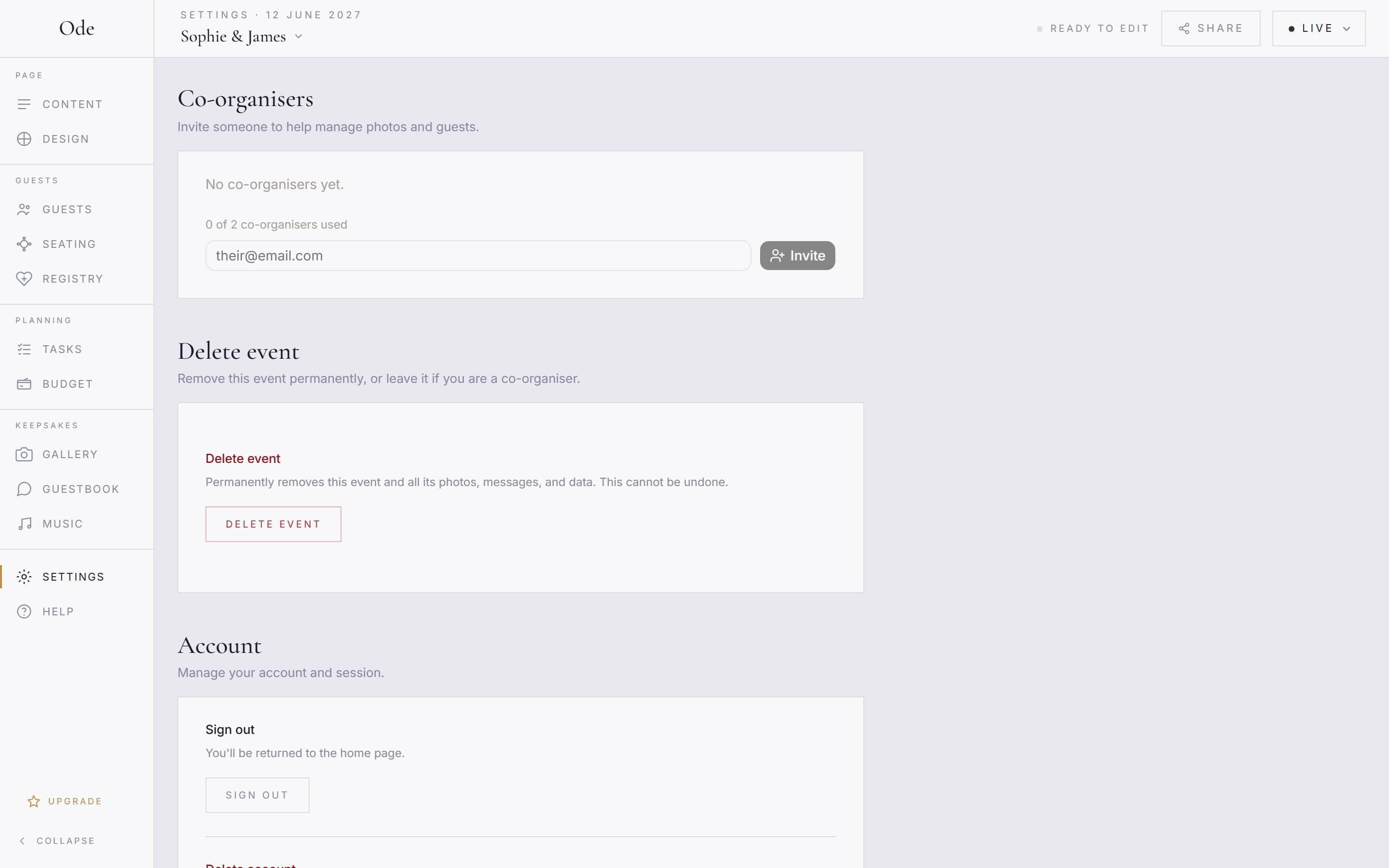
You don’t have to run the whole event from one account. A co-organiser, a partner, a parent or a particularly capable best man, can share the studio with you. Co-organisers are managed in Settings under Co-organisers, where the panel is subtitled Invite someone to help manage photos and guests.
Send an invite
Open the Co-organisers panel.
Go to Settings and find Co-organisers. Only the event owner sees the invite form; a line above it reads, for example, 1 of 2 co-organisers used.
Enter their email and press Invite.
Type the email address into the their@email.com field and press Invite. The panel confirms with Invitation emailed to… and the address appears under Pending invites with its expiry date. You can’t invite yourself, and the same address can’t hold two invites at once.
Chase it if you need to.
Invites expire after 7 days. If the email goes astray, enter the same address and press Invite again: while the invite is still pending this resends the same email rather than creating a second one. Sent it to the wrong address? The × next to the pending invite revokes it, and the link in that email stops working.
What the invitee sees
The email carries a link to an invitation page headed You’ve been invited. If they aren’t signed in they choose Create an account (the sign-up form opens with their email already filled in) or I already have an account. Once signed in with the invited address the page shows Invitation accepted and a Go to event studio button, and the address moves from Pending invites to Active in your panel. Signed in with a different address, they see Wrong account and need to sign out and back in with the one you invited.
What a co-organiser can do
A co-organiser works in the same studio you do. They can edit the page, change settings such as the date and password, manage RSVPs, moderate photos, and read messages and requests, which covers the jobs worth delegating: approving the album the morning after, chasing stragglers on the guest list, fixing a typo in the schedule while you’re at the venue.
Four things stay with the owner. A co-organiser cannot publish the event (there is no Publish button for them), cannot upgrade the plan (Plan & billing reads Only the event owner can change the plan.), cannot invite or remove other co-organisers, and cannot delete the event; in Settings they see Leave event where you see Delete event. Payment details never leave your account. The one exception is an event on an Ode Business account, where the website is included and nothing is bought at publish, so the couple can publish it themselves.
To remove a co-organiser, press the remove icon next to their address under Active. Their access ends immediately; you can re-invite them later if you change your mind.
Co-organisers sit alongside the other Settings controls for access, passwords and the plan, which are covered in Privacy, passwords and guest permissions.