The photo album collects everyone’s pictures of the day in one place, without apps or accounts. It’s managed in the Gallery workspace, which has two tabs: Photos, where the pictures live, and Settings, where you decide how the album behaves. A counter in the header reads, for example, 14 / 20 photos. For how guests share photos on the day, see wedding photo sharing.
Album settings
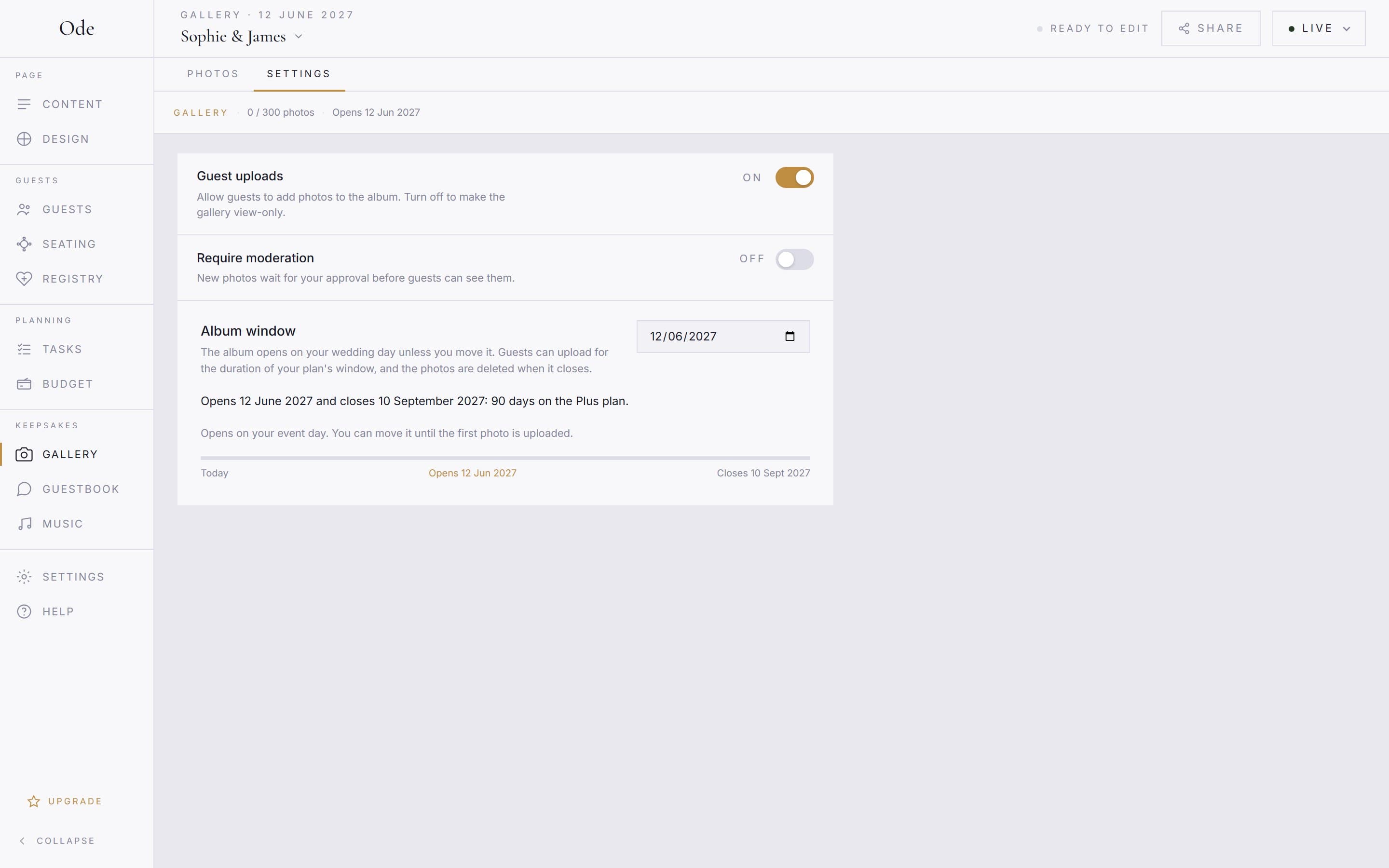
The Settings tab has exactly three controls.
Guest uploads.
Allow guests to add photos to the album. Turn off to make the gallery view-only. It is on by default. With it off, the upload page bounces guests back to your event page and the section’s upload button leads nowhere useful, so switch it off only when you want to close the album early.
Require moderation.
New photos wait for your approval before guests can see them. Off by default. There is no separate setting for organiser uploads: organisers use the same upload page as guests, and the same rule applies to everyone.
Album window.
The album opens on your wedding day. You don’t need to set anything: the Album opens on date is taken from your event date, and if you move the wedding in Settings > Event details the album moves with it. A summary line tells you exactly when it opens and closes on your plan, for example Opens 13 June 2027 and closes 20 June 2027: 7 days on the Free plan.
You can open it earlier or later by changing the date (a Use my wedding date link snaps it back). The window counts from the day the album opens, not from the event, so the studio warns you when the two differ: open a 7-day album a fortnight early and it will have closed before anyone arrives. Choosing today asks for an extra Yes, set this date because the album opens at once. Once the first photo is uploaded the date is locked (Locked: a photo has been uploaded), so guests are never told one closing date and given another.
How a photo becomes visible
Every upload is screened automatically for unsuitable content (Ode uses AWS Rekognition for this) before it can appear, whatever your moderation setting. Screening usually takes a few seconds, so a photo is not visible the instant it is sent even with moderation off, and a photo that fails screening stays hidden from guests. With Require moderation on, a photo must both pass the screen and be approved by you.
On the guest side, the upload form has an optional Your name field (placeholder e.g. Aunt Sarah) and an Upload anonymously switch that hides it. Guests must tick a consent box confirming they have the right to share the photos and that identifiable people have consented; the form will not submit without it. After sending they see Photos added, or Photos submitted when moderation is on. Guests cannot delete a photo once sent; that is done from your Gallery workspace.
Moderating photos
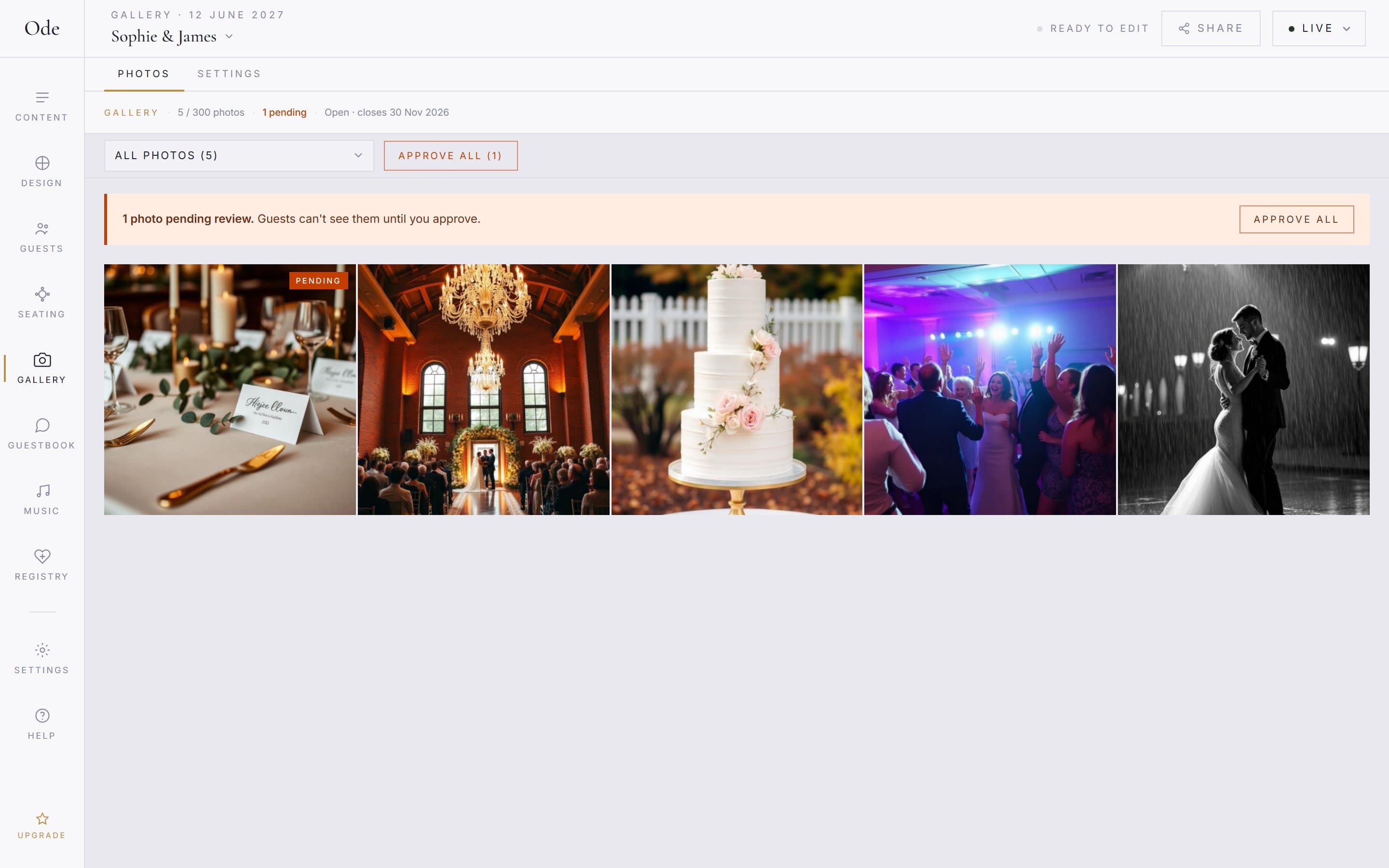
The Photos tab has a dropdown with All photos (n), Pending review (n) and Approved (n). When anything is waiting, a notice reads 3 photos pending review. Guests can’t see them until you approve. with an Approve all (3) button that clears the queue in one go. Hover over (or tap) a photo to act on it individually: Approve for a pending photo, Remove (then Yes) to delete it permanently, and a download icon to save the stored version to your device. Removing works on approved photos too, so you can prune the album at any time.
When the album closes
When the window ends we begin permanently deleting the photos in the album. This may complete on the day itself or within a few days after, and deleted photos cannot be recovered. We email the event owner a few days before the deletion date as a reminder, and the Plan & billing section in Settings shows the date. Only photos are deleted at this point: RSVP replies are kept until 90 days after the event date, and the event itself, with its guestbook, song requests and registry, until a year after the event date.
If you need more album time
Your album window is your album open date (your wedding day, unless you moved it) plus the number of days included in your plan: 7 days on Free, 30 on Starter, 90 on Plus and 180 on Complete. If your window is coming to an end, you have two options:
Download the photos you want to keep.
Open the Gallery workspace and use the download icon on each photo; the stored versions are higher resolution than the thumbnails shown in the guest gallery. Guests themselves cannot download from the gallery, so this is the only route.
Upgrade your plan to extend the window.
Upgrading recalculates your window from your original album open date using the bigger plan’s duration. For example, an album opened 25 days ago on Starter (30 days) has 5 days left; upgrading to Complete (180 days) gives it 155 days from today. Upgrade from Settings > Plan & billing or the Upgrade plan button at the bottom of the rail.
Getting guests into the album
Press Share in the masthead and switch to the Photo album tab. It gives a link that opens the album directly (your event link with /gallery on the end) and a matching QR code with Download SVG. A table card with that code is the reliable way to collect photos on the day: guests point a phone camera at it, the album opens, and the upload button is right there. No app, no sign-up, no chasing people for pictures afterwards. See Go live and share your link for the rest of the Share popover.
The gallery section on your page
How the album appears on your event page is controlled on the page itself. Select the gallery section in the Content workspace: Show preview displays recent photos in the section, Photos to show picks 4, 6, 8 or 12, and Upload button shows or hides the upload button in the section. The inspector also repeats the album window controls under When guests can upload. The guest gallery is a grid of thumbnails: there is no lightbox, no per-photo download and no commenting. The photos themselves, and the three settings above, stay in the Gallery workspace.