The Seating workspace is where you plan the tables for your reception. You add tables, set their sizes, and seat every guest from your RSVP replies. Because the plan draws on your replies, it works best once the deadline has passed; reading the replies themselves is covered in Manage replies and export for your caterer.
The layout
On desktop the workspace has two panels: Guest List on the left, with everyone from your RSVPs grouped under From RSVP (one group per RSVP section if you have several) and Manually added, and your tables on the right. The toolbar counts seats and people: 10 / 40 seated and 3 unseated. On a phone the two panels become Guests (n) and Tables (n) tabs.
Add your tables
Press Add table.
A New Table form appears in the tables panel with everything on it: Table name, a Head table switch, and Seats.
Name it.
“Table 1” works, but so do place names, songs or anything else you’ve themed the tables around. The name is what guests see when they look themselves up, and what appears on the PDFs.
Mark the top table, if this is it.
Switch on Head table (For the top table or bridal party) and it is flagged on the plan and labelled HEAD on the printed version.
Choose the seat count and create it.
Pick a preset (4, 6, 8, 10 or 12) or type any number under Other, then press Create table. A table is a name, a seat count and the head-table flag; there are no shapes or room layouts to draw. You can change the name later with the pencil Edit icon on the table (press Enter to save).
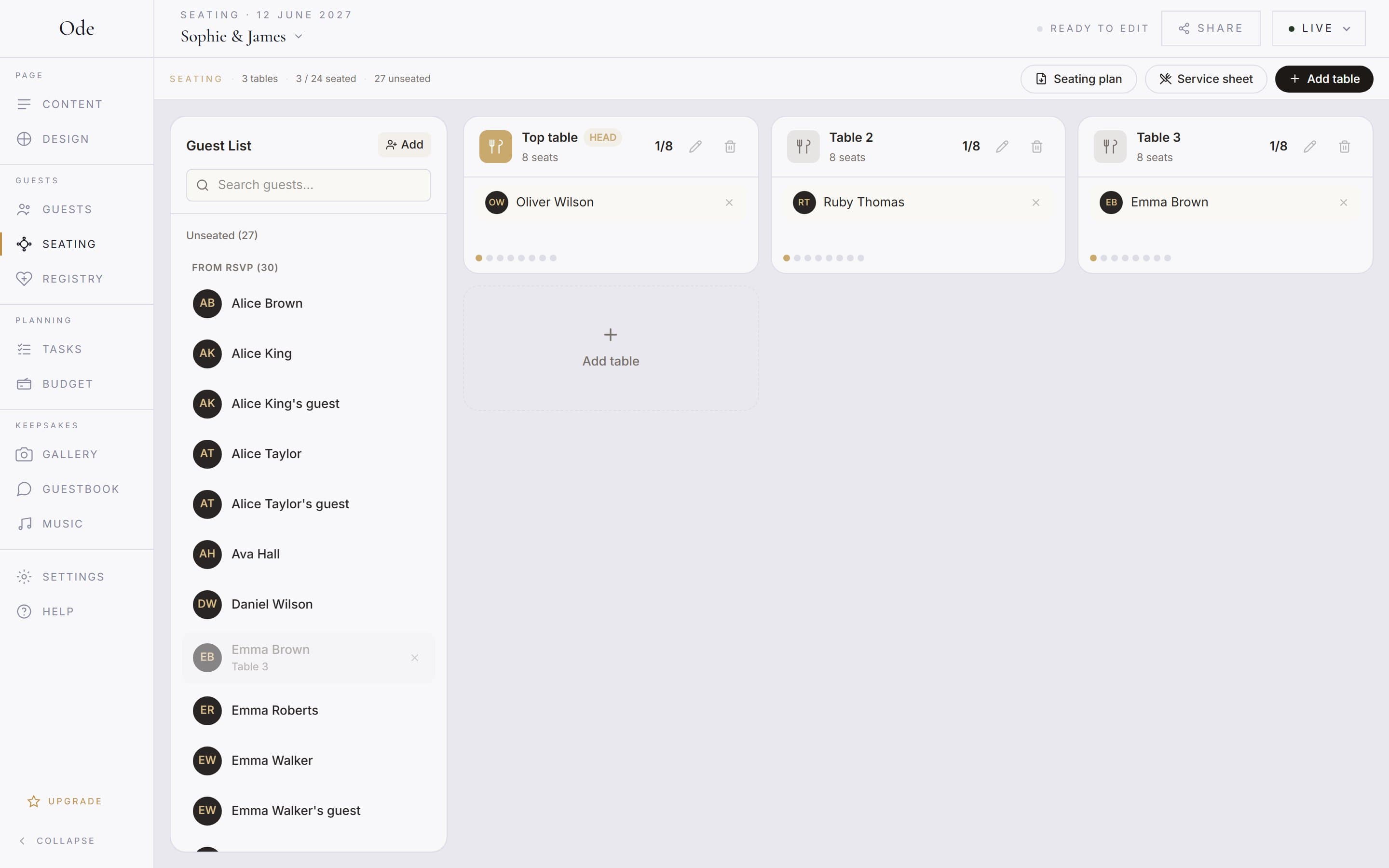
Each table shows who’s seated and how many seats are still free, so it’s easy to spot the table with room for a late yes, and to rebalance when one side of the family fills up faster than the other. The bin icon deletes a table; your browser asks Delete this table and all its seat assignments? first, and the guests on it return to the unseated list.
Seat your guests
The guest list is built from your RSVP replies, so there’s no retyping; anyone marked as not coming is left out. Use the Search guests… box to jump to a name. On desktop, drag a guest onto a table (the table reads Drag guests here while it has room) and they take the next free seat. On a phone, tap the guest; the tables tab opens with a banner reading Assigning Ben Brown. Tap a table below, and tapping a table seats them. A seated guest shows their table name in the list; tap or drag them again to move them.
Hover over a guest or a seat to see their meal choices in a tooltip (for example Main: Fish). Meals are deliberately kept out of the plan itself so it stays readable; the kitchen gets them on the service sheet below.
Some people on the day won’t have RSVP’d, such as the band, the photographer or a late yes. Press the small Add button at the top of the guest list, type a Guest name…, press Enter, and seat them like anyone else. They appear under Manually added.
Show the plan on your page
The Seating workspace is always private; nothing on it is visible to guests until you add the Seating plan section to your page. There is no publish switch. In the Content workspace press + Add section and pick Seating plan. Its inspector, under What guests see, has two switches: Seat search, where guests type their name into Type your name to find your seat and are shown their table, and Full seating list, which lets guests open View full seating list and browse every table. Both are on by default.
To keep the plan off the page while you shuffle tables, hide the section with the eye icon (Hide from guests) and reveal it when it’s final, or simply add the section last. Guests find their table by the name on the plan, so “Katie” won’t find a seat saved under “Katherine”.
If you’re wrestling with who sits where, our seating plan etiquette guide covers the common dilemmas, from divorced parents to the singles table.
Print it for the venue
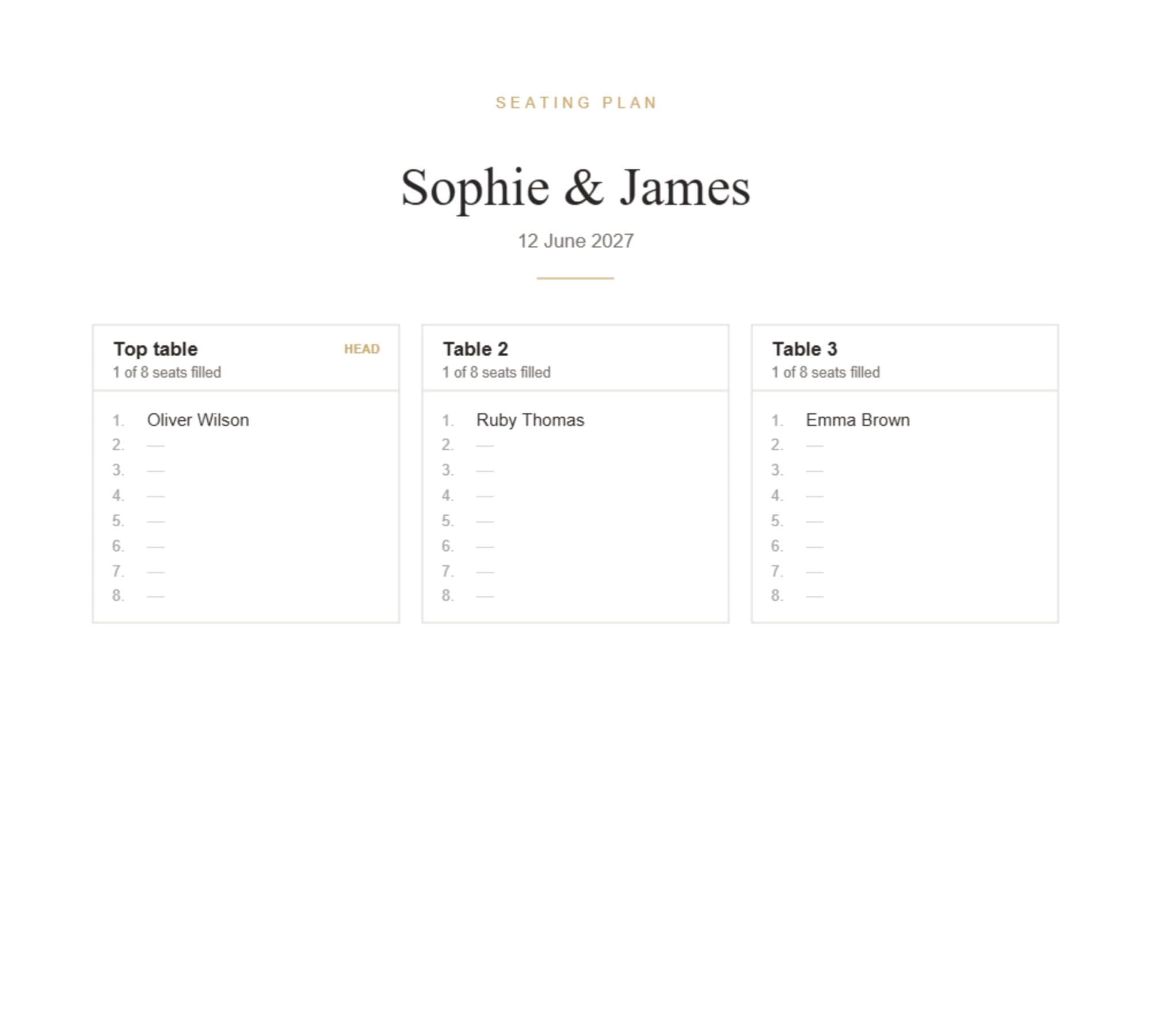
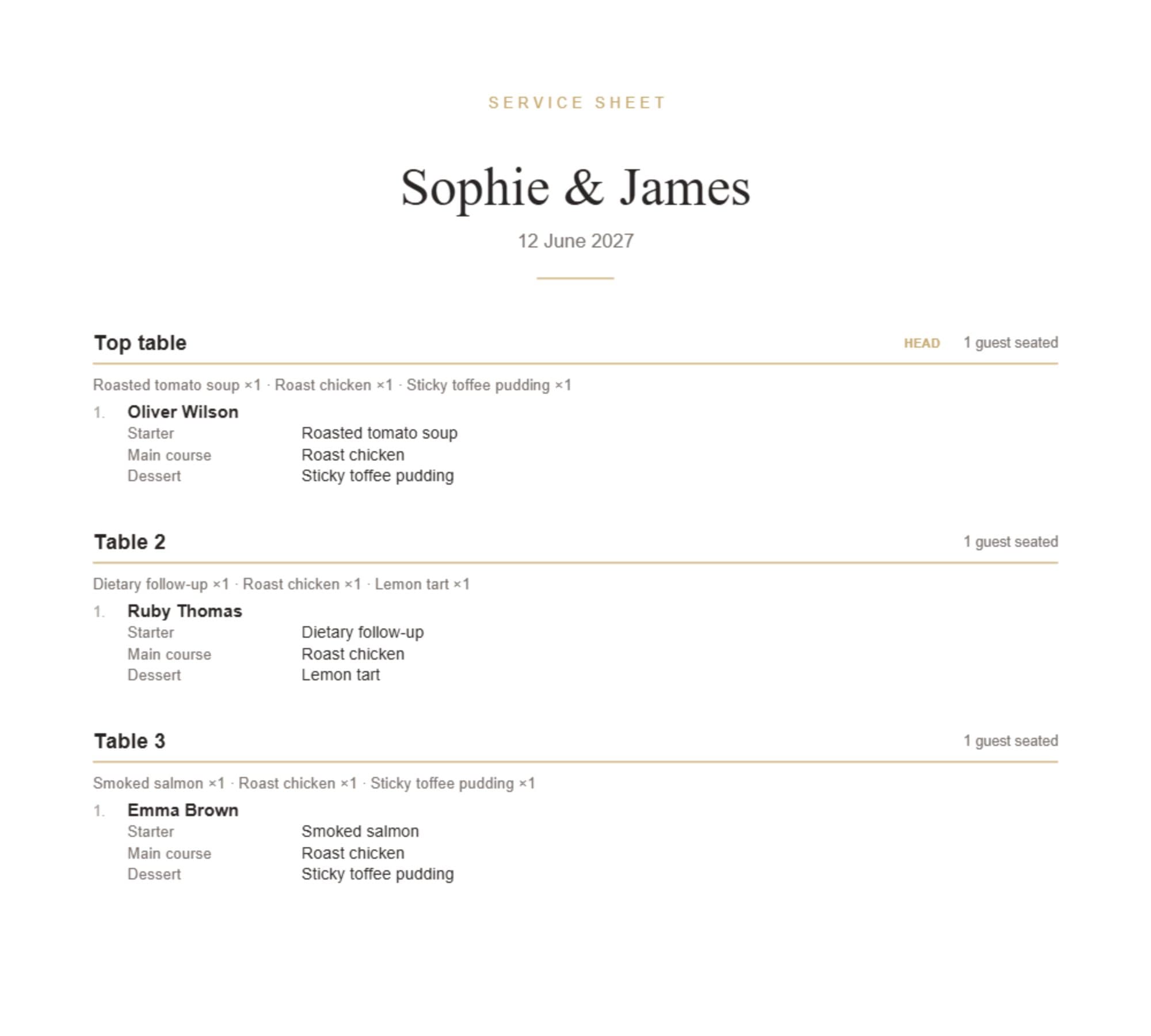
Two buttons in the Seating toolbar download PDFs straight away (on a phone they are icons labelled Download seating plan and Download service sheet). Seating plan lays the whole plan out table by table: every table, every name, the head table flagged. Hand it to the venue coordinator, or frame it as a welcome sign for guests who prefer paper to phones. Service sheet is for the kitchen: each table’s guests seat by seat with their course choices, plus a per-table tally such as “Fish ×3 · Beef ×2 · Dietary follow-up ×1” so the caterer can plate up at a glance. Both reflect whatever the plan looks like when you download them, so run them off once the plan is final.