Replies arrive in the Guests workspace the moment a guest sends them. This guide covers reading the responses, chasing stragglers, handling late changes, and getting the numbers to your caterer. Setting up the form in the first place is covered in Set up RSVPs and meal choices.
Reading the responses
Open Guests and pick a section from the RSVP sections sidebar; each row carries an Open or Guest list badge and a count such as 12 responses or 8 / 40 responded. The section’s Responses tab then lists one row per reply: the name it was sent under, party details (party of 3, +1 guest) and a status pill: Attending, 2 attending, 2 of 3 coming when someone in the party declined, or Can’t make it. Click a row to expand it: the drawer shows when it was sent (Replied 4 March), every member of the party with their attendance, their menu and choice for each course, and any message.
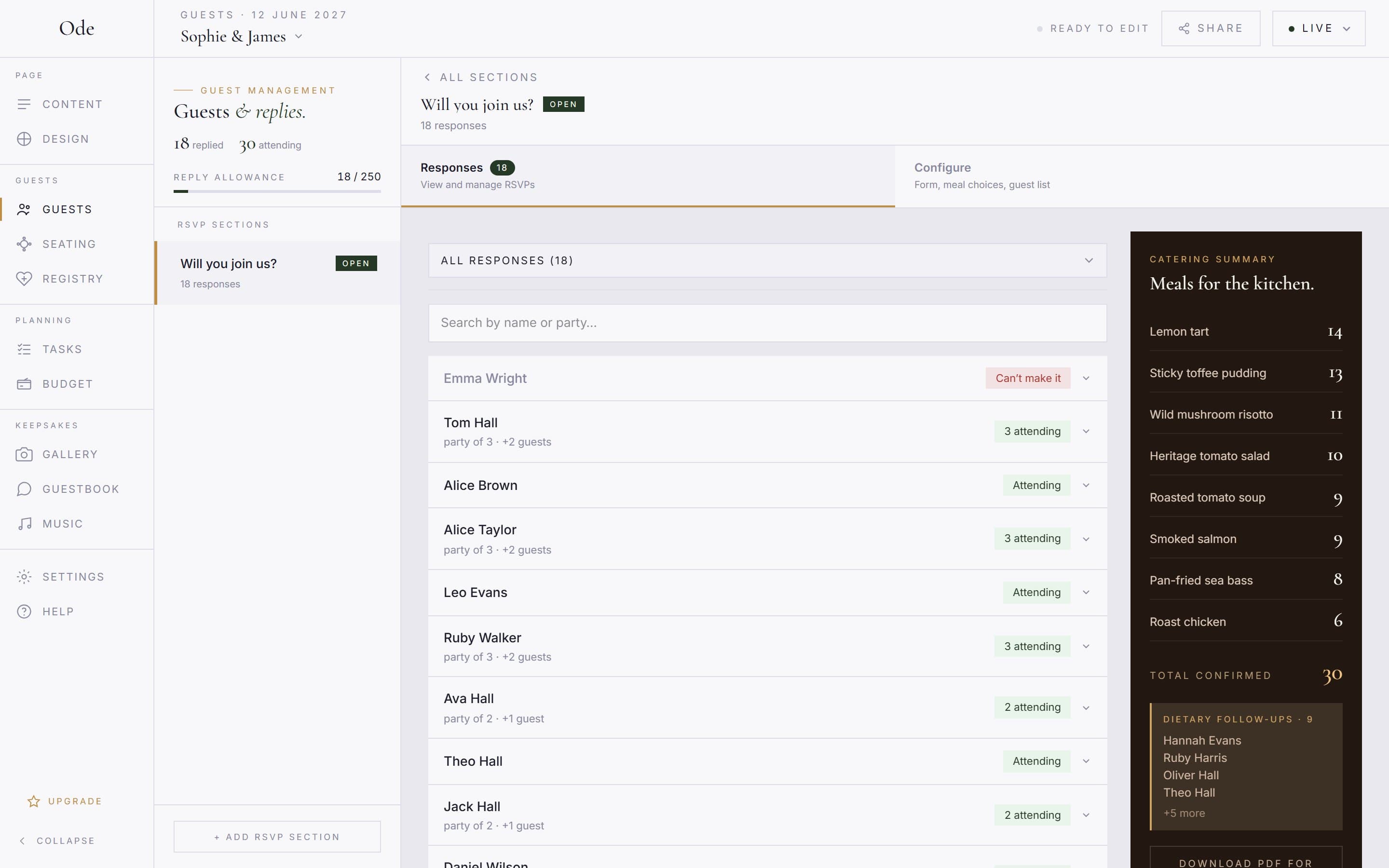
Filter chips narrow the list: All responses (or Everyone on a guest list, which mixes replies with the entries still waiting), Attending, Declined, Awaiting (guest list only), With +1s and Dietary needs. A search box finds a reply by name or party.
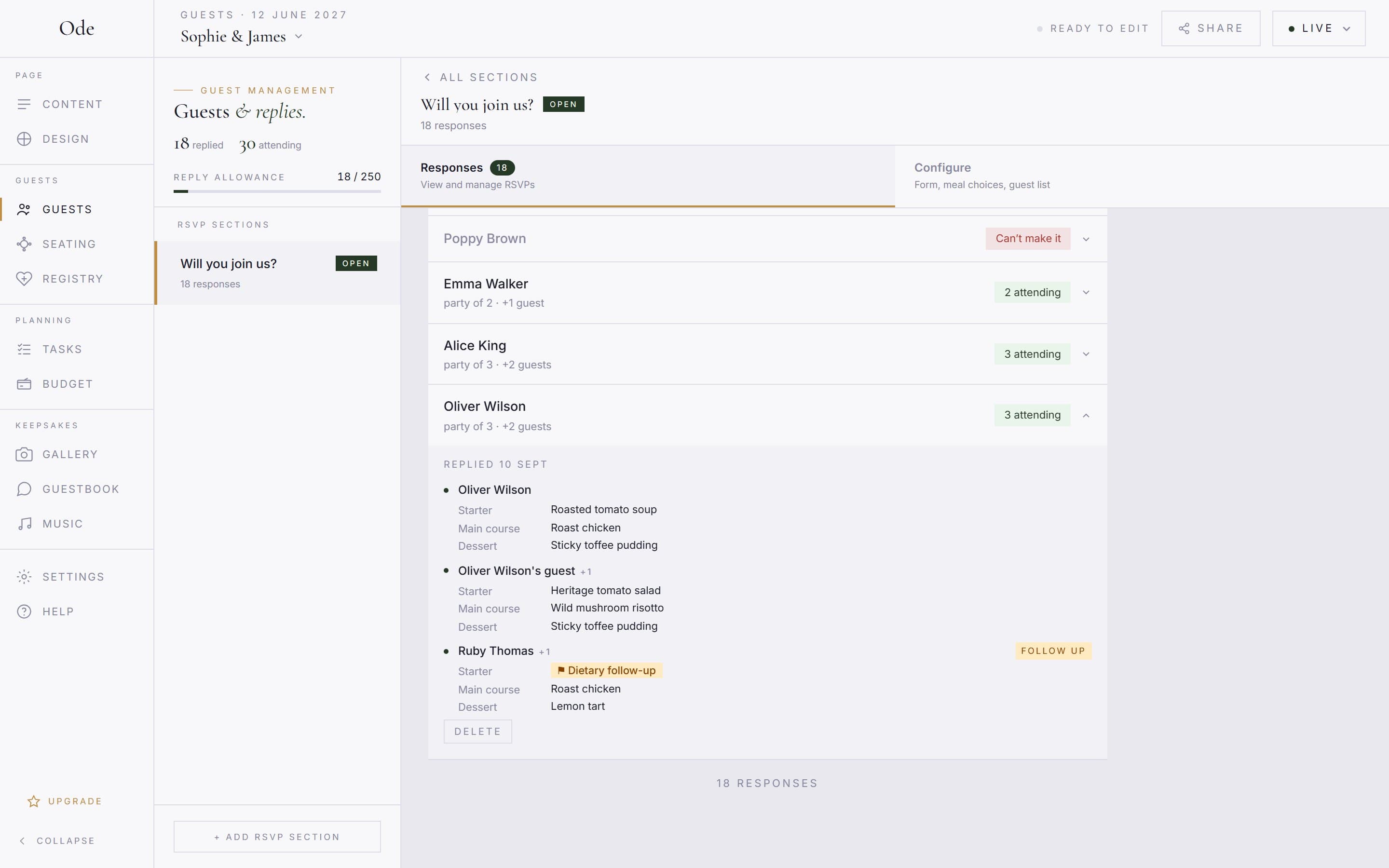
Anyone who chose Dietary needs on a course carries a Follow up badge, and the expanded drawer marks the course with ⚑ Dietary follow-up. Ode deliberately never collects dietary detail through the form (allergies and religious requirements are sensitive information), so the badge is your prompt to contact that guest directly and have the conversation yourself. The Dietary needs filter gives you the whole list at once.
Chasing guests who haven’t replied
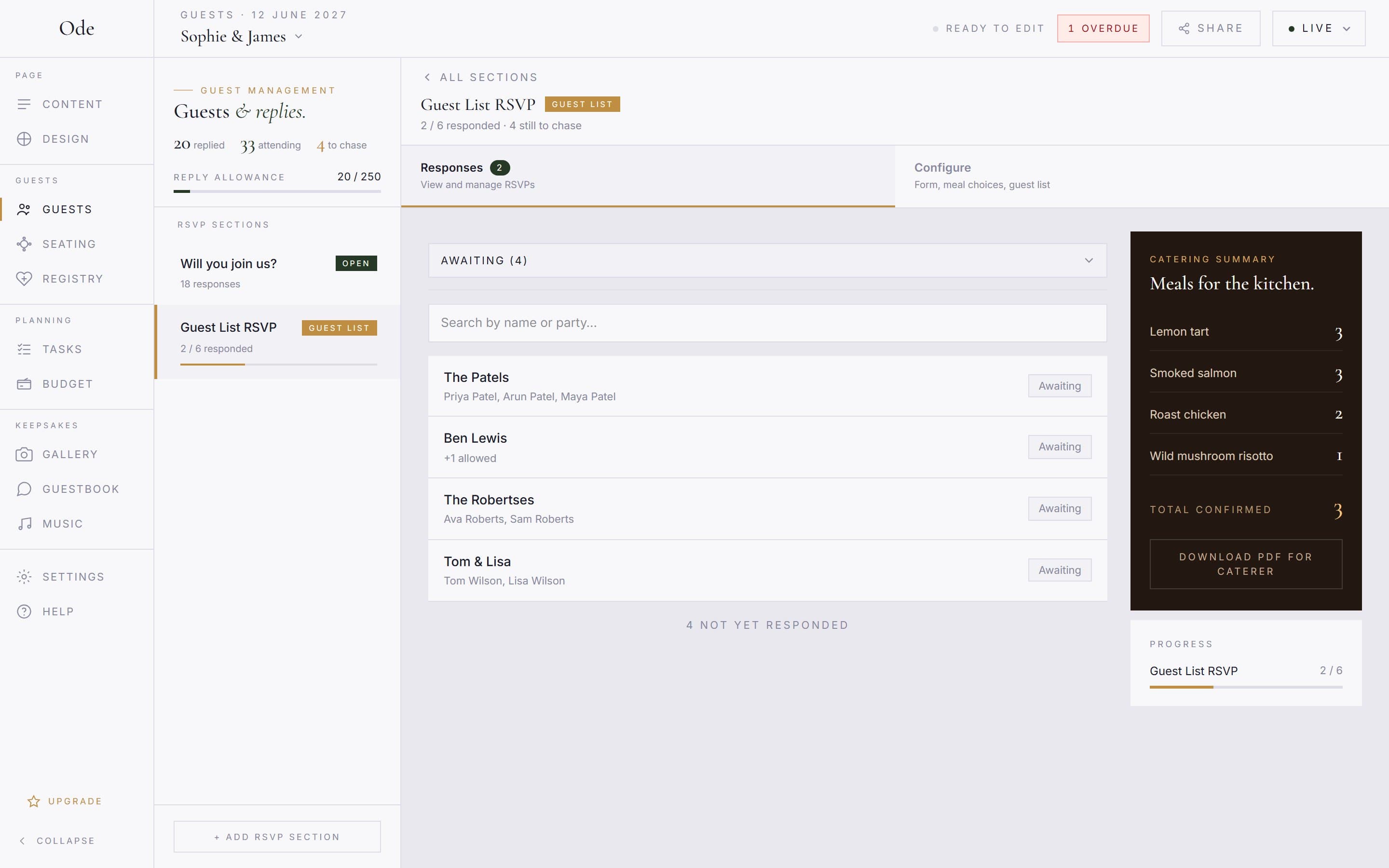
If you’re running a guest-list RSVP, the Awaiting filter (and the default Everyone view) shows every invited entry that hasn’t replied, and the section header counts them (4 still to chase). With an open RSVP there is no invited list to compare against, so you’ll be working from your own records instead.
Numbers for the caterer
Check the catering summary.
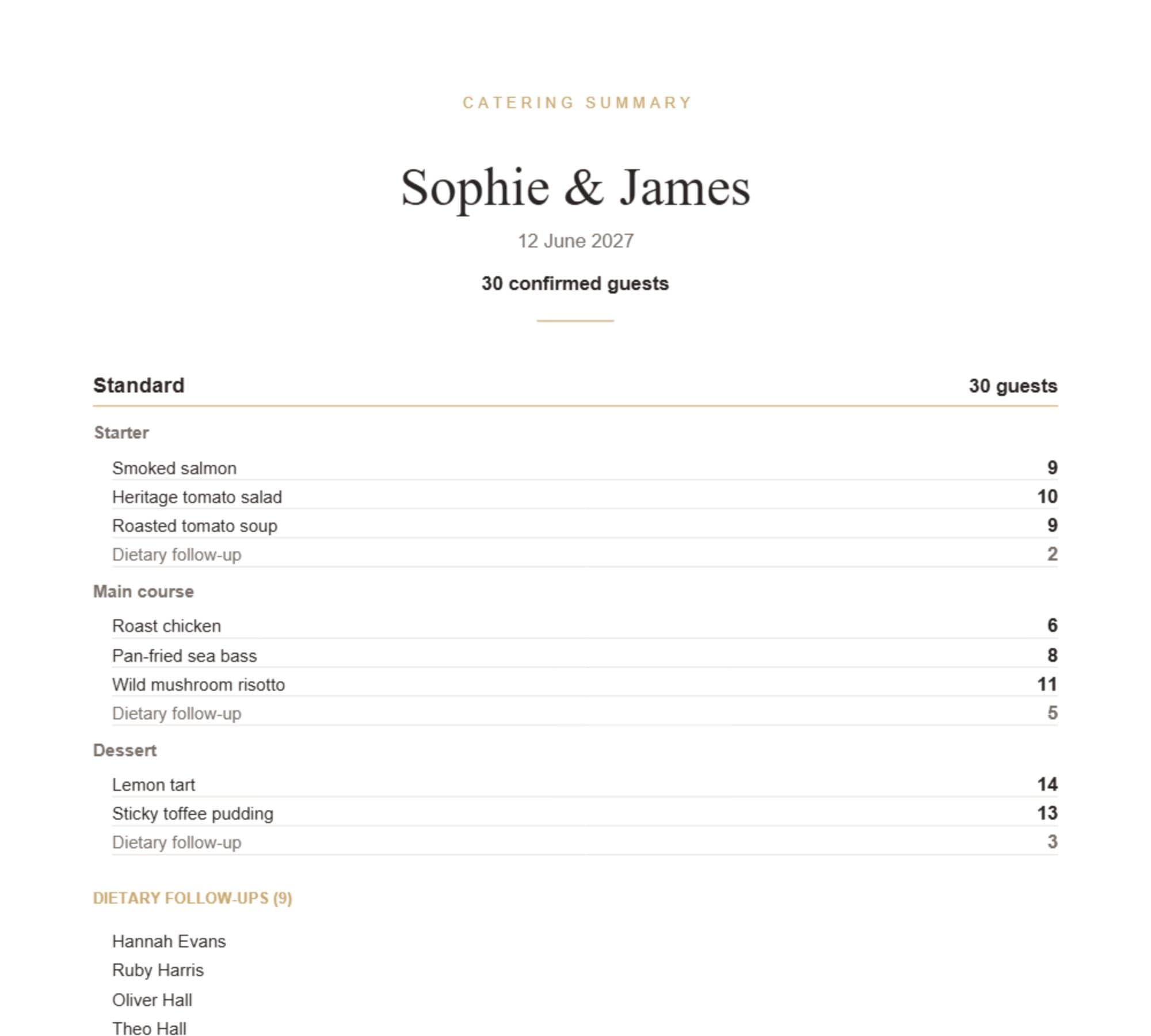
On Plus and above, a Catering summary panel sits beside the responses for any section with menus. It counts each option across everyone who is attending, shows Total confirmed, and lists the names under Dietary follow-ups. The Download PDF for caterer button turns it into a print-ready sheet with the per-course totals, the No thanks and dietary counts, and the follow-up names; it stores no dietary detail.
Check the detail per guest.
For per-guest detail, expand any reply in the Responses tab: each party member is listed with their attendance, course choices and any message. This part is available on every plan.
Late changes
Guests cannot edit a reply once it is sent, and a guest-list entry that has responded is not offered again when they search. If someone’s plans change, clear their old reply and ask them to reply again:
- Open RSVP: expand the reply and press Delete, then confirm. Without this, a second reply would be counted twice.
- Guest-list RSVP: go to Configure > Guest list, find the entry marked Responded and press Reset. This deletes the superseded reply and reopens the entry so the guest can be found again.
If the guest had already been placed on the seating plan, their seat survives: the assignment keeps their name as plain text, so you don’t need to redo the plan, though the meal tooltip on that seat will only return once they have replied again. Download the caterer PDF again once the deadline has passed and the last few replies are in, and send the caterer that final version rather than an earlier one.