RSVPs live in two places in the studio: the RSVP section on your page (what guests see) and the Guests workspace (where you configure the form, the menus and the guest list, and where replies arrive). This guide covers the setup; reading the replies is covered in Manage replies and export for your caterer.
Choose your RSVP mode
There are two kinds of RSVP section, and you pick one when you add it:
- Open RSVP: anyone with your link can type their name and reply, add guests if you allow plus-ones, and pick meals. Available on every plan, including Free.
- Guest-list RSVP: you enter the invited names in advance and guests search for their own name to reply. Nobody who isn’t on the list can respond, each entry can carry its own plus-one allowance, and you can see who hasn’t replied yet. Available on Plus and above.
Add the section and open its settings
Add the RSVP section.
Either open Guests in the rail and press + Add RSVP section, choose Add open RSVP or Guest List RSVP, give it a name and press Create; or, in the Content workspace, press + Add section and pick the RSVP tile for the mode you want. The Wedding template already includes an open RSVP titled “Will you join us?”.
Select it in the Guests workspace.
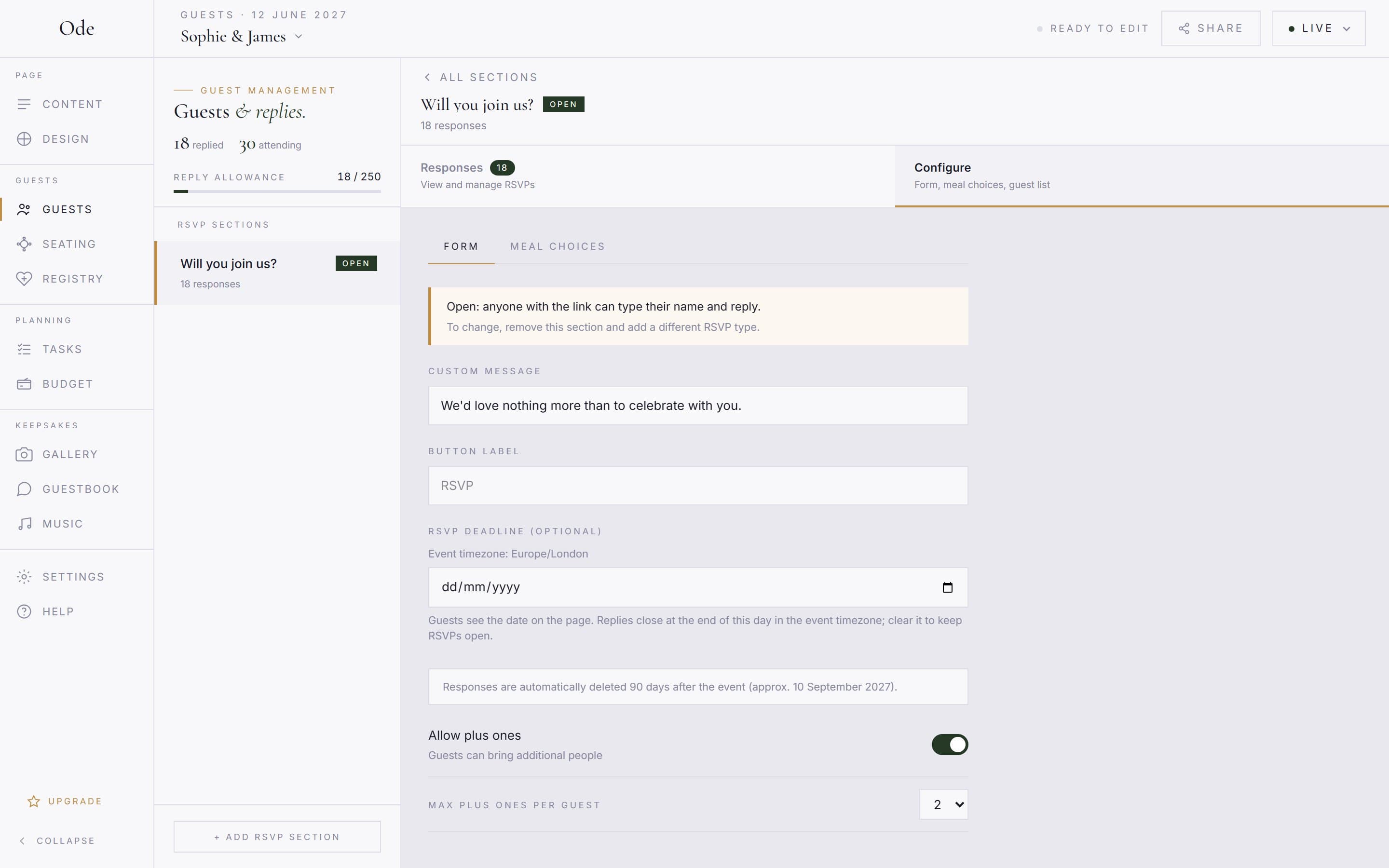
The Guests workspace lists your RSVP sections in a sidebar, each with an Open or Guest list badge. Click one to open it. Its detail view has two tabs: Responses, where replies arrive, and Configure, which has its own sub-tabs: Form, Meal choices and, for guest-list sections, Guest list. Selecting the RSVP section on the canvas shows a Go to Guests shortcut that lands you in the same place.
Set up the form.
On the Form sub-tab: a message shown above the form (the placeholder is We hope you can join us!), the Button label guests press (default RSVP), the RSVP deadline (optional), and Allow plus ones. Turning plus-ones on reveals Max plus ones per guest, which is 1 or 2. Everything saves as you type.
Build your menus.
On the Meal choices sub-tab, switch on Enable meal choices. Press + Add menu, type a name such as Standard, Vegetarian or Kids, and press Add. Inside the menu press + Add courses →, name the course (Starter, Main, Dessert) and type each option into Option, press Enter. Add more with + Add course, and press Done when the menu is finished; Edit reopens it later. You can have up to 5 menus, 10 courses per menu and 30 options per course.
When guests reply they pick a menu, then one option for every course in it. Alongside your options each course offers two chips: No thanks (skips that course) and Dietary needs. The second one flags the guest for a follow-up without collecting any medical or religious detail through the form; the guest sees “We’ll flag this. Your hosts will contact you to discuss.”
Set your deadline.
Pick the date replies should arrive by. Guests see it on the page as “Please RSVP by…”, and the form closes at the end of that day in your event’s timezone (set in Settings > Event details); after that the section reads The RSVP deadline has passed. Clear the date to keep RSVPs open. Four to six weeks before the wedding is the usual choice; our RSVP deadline guide covers how to pick yours.
Build your guest list (guest-list mode)
On the Guest list sub-tab, add entries with + Individual, + Couple or + Group. An individual needs a Guest name; a couple or group needs a display name such as The Smiths, a name per member (Member 1, Member 2, + Add member) and, if plus-ones are on, how many extra guests that party may bring. Press Save guest. Entries can be edited (Edit) or deleted later, and a Search guests… box finds a name quickly. Guests search for any member’s name to find their invitation, so spell names the way the guest would type them.
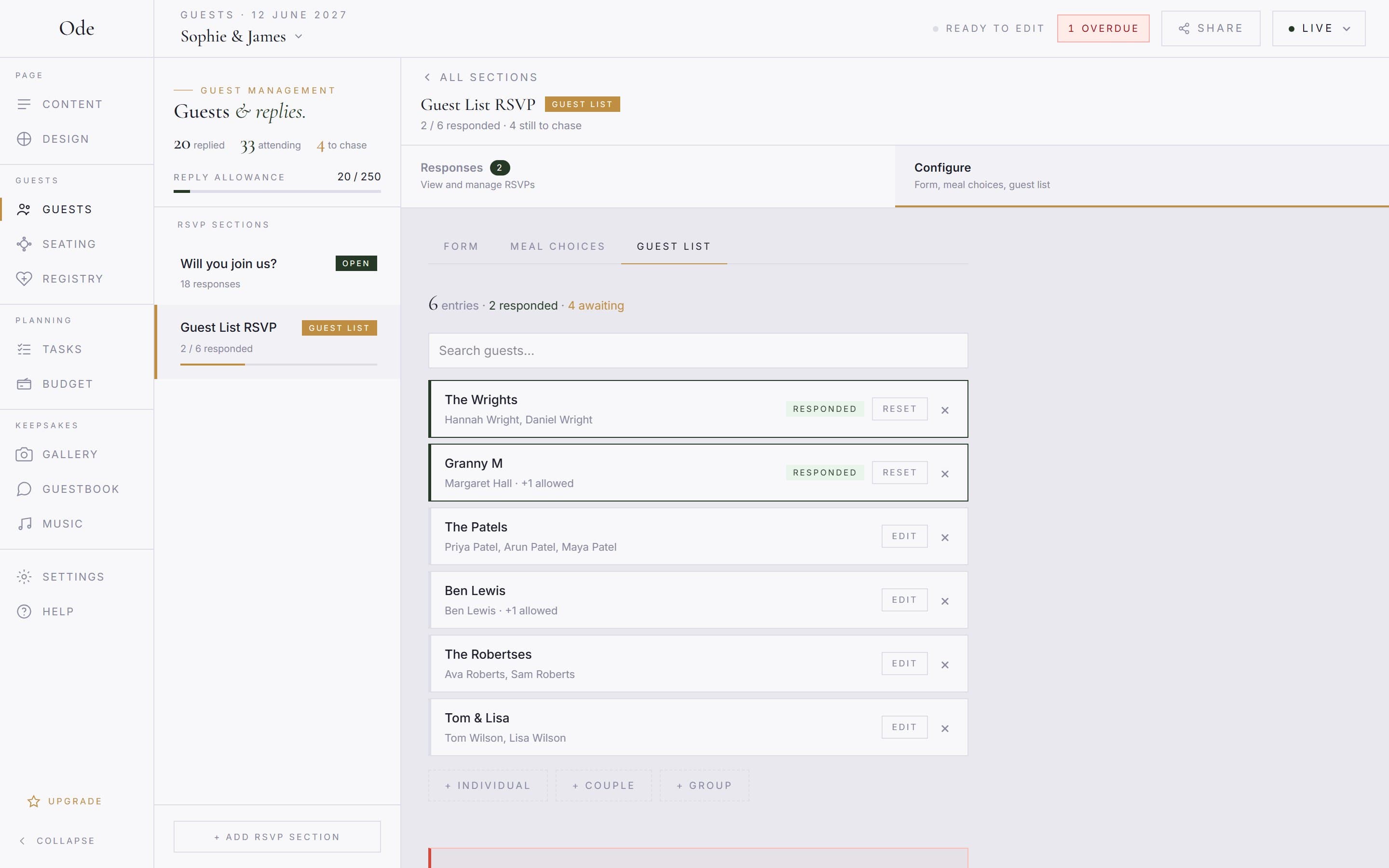
Named members are never counted as plus-ones; only the extra people a guest adds on the roster are. Once an entry has replied it shows a Responded chip, is no longer offered to guests searching, and gains a Reset button. See Manage replies for what Reset does.
What guests see
Guests open your link, press the RSVP button and answer in a short flow with no account and nothing to install:
- Name. On an open RSVP they type Your name. On a guest-list RSVP they type into Find your invitation and pick their party from the matches.
- Who’s coming? A roster lists the guest (and, on a guest list, every named member of their party), each with Coming / Can’t make it. If plus-ones are allowed, + Add a guest adds extra people by name, up to your maximum. Anyone can decline while the rest of the party still comes. There is no separate party-size question.
- Meals. If meal choices are enabled, one card per attending person: choose a menu, then an option (or No thanks / Dietary needs) for each course, then Next person →. People marked as not coming skip this step.
- Ready to send? A review of everyone’s answers with an optional Message to the hosts, then Send RSVP. If nobody in the party is coming the buttons read Send our apologies instead and the meal step is skipped.
The guest sees RSVP received, and the reply appears in your Responses tab immediately. The browser tab remembers the reply, so a reload shows the confirmation rather than a blank form.
Limits and deleting a section
Each plan caps the total number of replies across all RSVP sections on the event: 30 on Free, 75 on Starter, 250 on Plus and 500 on Complete. A reply is one submission, however many people it covers. At the cap, guests are told the event has reached its maximum number of responses and the organiser may need to upgrade. Replies are automatically deleted 90 days after the event date; the Form sub-tab shows the approximate date.
Deleting an RSVP section permanently deletes every reply and guest-list entry it holds. From the canvas, Delete opens a modal that states the counts (for example “This will permanently delete its 3 RSVP responses”) before you press Remove section. In the Guests workspace, the danger zone at the bottom of the Configure tab does the same with Delete section then Confirm delete.